A persistent shadow on a computer monitor is often fixable by updating graphics drivers, inspecting cable connections, or adjusting display settings. Common culprits behind these visual anomalies—which include ghosting, double images, and faint trails—include incorrect refresh rate configurations, aggressive overdrive settings, and slow pixel response times.
While physical damage to the display panel or screen burn-in may require replacement, simple software glitches and signal issues can usually be resolved at home. The rest of this guide covers the common causes of monitor shadows and provides step-by-step instructions to troubleshoot and fix your display.
Shadow on computer monitor: Why Is My Monitor Showing Shadows?
A persistent shadow on your computer monitor can turn a productive work session or an immersive gaming experience into a frustrating ordeal. These visual anomalies, often appearing as faint trails, double images, or discolored areas, can stem from various sources. Understanding these causes is the first step toward restoring your display to its former clarity.
- Shadows, ghosting, or double images on a monitor are often fixable by adjusting settings, updating drivers, or checking cables.
- Incorrect refresh rates or low pixel response times are common culprits behind motion-related shadows.
- Physical damage to the display panel or internal components usually requires professional repair or replacement.
- Regular maintenance and careful handling can prevent many common monitor shadow issues.
- As of June 2026, new monitor technologies are improving response times, but older issues persist on many devices.
What Exactly is a “Shadow” on a Monitor?
When we talk about a “shadow” on a computer monitor, it’s rarely a literal shadow cast by an object. Instead, it refers to visual artifacts that mar the display’s image. These can manifest in a few distinct ways, each with its own set of potential causes and solutions.
The most common forms include ghosting, where a faint image or trail lingers behind moving objects; double images, appearing as a slight offset or echo of an element; and discoloration or persistent faint shapes resembling shadows, which might indicate panel issues.
The Usual Suspects: Common Causes of Monitor Shadows
Several factors, ranging from simple software glitches to hardware malfunctions, can lead to shadows appearing on your screen. Identifying the specific cause is crucial for applying the correct fix.
Outdated or Corrupted Graphics Drivers
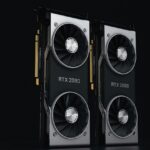
Your graphics card (GPU) and its drivers are responsible for sending image data to your monitor. If these drivers are outdated, corrupted, or incompatible, they can send faulty signals, leading to display anomalies like shadows or flickering. This is a frequent culprit for issues that appear suddenly.
When drivers are not up-to-date, they may not properly communicate with your monitor’s capabilities, especially if the monitor is newer or has advanced features. This can result in visual glitches that look like shadows or trails, particularly during motion.
Incorrect Refresh Rate Settings
The refresh rate of your monitor, measured in Hertz (Hz), indicates how many times per second the screen updates its image. If your monitor is set to a refresh rate that it doesn’t fully support, or if it’s mismatched with your graphics card’s output, you might experience ghosting or motion blur, which can appear as shadows.
For example, a high-refresh-rate gaming monitor (like 144Hz or 240Hz) might show trails if the system is only outputting 60Hz, or if the monitor itself has a slower pixel response time that can’t keep up with the rapid image changes. According to sources like RTINGS.com, proper refresh rate configuration is vital for smooth visuals.
Slow Pixel Response Time
Pixel response time is the duration it takes for a pixel to change from one color to another. A slow response time means pixels can’t switch colors fast enough to keep up with fast-moving images, leading to the “smearing” or “ghosting” effect that looks like a shadow trailing behind objects.
This is particularly noticeable in fast-paced games or videos. While manufacturers often advertise response times (e.g., 1ms, 5ms), real-world performance can vary. A monitor with a response time of 15ms or higher is more likely to exhibit this ghosting effect.
Faulty or Loose Cable Connections
The cable connecting your computer to your monitor (HDMI, DisplayPort, DVI, or VGA) is the conduit for all visual data. If this cable is damaged, loose, or of poor quality, it can lead to signal interference, resulting in distorted images, lines, or shadow-like artifacts. Even a slightly bent pin in a connector can cause problems.
This is one of the easiest issues to check and fix. A damaged cable might have visible wear, fraying, or bent pins. Using a cable that doesn’t meet the bandwidth requirements for your monitor’s resolution and refresh rate can also cause signal degradation.
Incorrect Monitor Settings
Modern monitors come with a host of built-in settings, such as overdrive, response time acceleration, dynamic contrast, and color profiles. Incorrectly configured settings, particularly overdrive levels that are too aggressive, can introduce “overshoot” artifacts that appear as inverse ghosting or faint halos around objects, mimicking a shadow.
Many monitors have an “Overdrive” or “Response Time” setting that can be adjusted. Setting it too high can cause these visual artifacts. Experimenting with these settings, often found in the monitor’s On-Screen Display (OSD) menu, is a common troubleshooting step.
Physical Damage to the Display Panel
If the shadow appears as a permanent, discolored patch, or if there are dead pixels forming a shadow-like shape, it likely indicates physical damage to the LCD or OLED panel itself. This can happen from impact, excessive pressure, or manufacturing defects. Such damage is usually not repairable without replacing the entire panel.
This type of issue is distinct from ghosting. It looks more like a bruise on the screen or a section that consistently displays the wrong color or remains black. For example, a dead pixel stuck on a dark color could appear as a tiny black shadow.
Screen Burn-in or Image Retention
Screen burn-in occurs when an image is displayed for prolonged periods, causing permanent discoloration or “ghosting” of that static image. Image retention is a temporary version where a faint image remains visible after the static content is removed. While more common on older CRT and Plasma displays, OLED and even some LCDs can be susceptible to burn-in if static elements are displayed for excessively long durations.
Static elements like taskbars, logos, or game HUDs are primary culprits. Many modern monitors have features to mitigate this, such as screen savers or pixel shifting. According to Display Mate, OLED displays are particularly susceptible to permanent burn-in if not managed properly.
How to Fix a Shadow on Your Computer Monitor
Once you’ve identified the potential cause, you can start troubleshooting. It’s best to approach these fixes systematically, starting with the simplest solutions.
Step 1: Update Your Graphics Drivers
This is often the quickest and most effective first step. Visit the website of your graphics card manufacturer (NVIDIA, AMD, or Intel) and download the latest drivers for your specific model. Perform a clean installation if the option is available, which removes old driver files before installing the new ones.
After downloading, run the installer. During installation, look for an option to “perform a clean installation.” This ensures that no residual files from older driver versions interfere with the new ones, preventing potential conflicts that cause display issues.
Step 2: Inspect and Reseat Cables
Turn off your computer and monitor. Carefully disconnect all video cables (HDMI, DisplayPort, etc.) from both the computer and the monitor. Check the cables for any visible damage, kinks, or bent pins. If the cable looks fine, reconnect it firmly to both ends, ensuring it’s fully seated.
If possible, try a different, known-good cable of the same type. If the problem disappears, the original cable was likely faulty. This is a common and inexpensive fix, costing anywhere from $10 to $50 for a new, high-quality cable, depending on the standard and length.
Step 3: Adjust Monitor Settings and Refresh Rate
Access your monitor’s On-Screen Display (OSD) menu using the buttons on the monitor itself. Look for settings related to response time, overdrive, or pixel acceleration. Try setting overdrive to a lower level or off if it’s too aggressive. Experiment with different levels to see if the shadow effect improves.
Next, check your computer’s display settings. Right-click on your desktop, select “Display settings,” and then “Advanced display settings.” Ensure the refresh rate is set to the highest supported by your monitor. For instance, if your monitor is 144Hz, make sure it’s selected, not 60Hz.

Step 4: Run Built-in Monitor Test Patterns
Many monitors have self-testing features accessible through their OSD menu. These patterns display solid colors or moving objects to help isolate whether the issue is with the monitor itself or the signal coming from your computer. If the shadow appears even during these test patterns, the monitor is likely the source of the problem.
Look for options like “Monitor Self-Test,” “Pattern Test,” or similar in your OSD menu. If the test reveals the shadow persists across all patterns, it’s a strong indicator of internal hardware issues within the monitor.
Step 5: Test with Another Device
Connect your monitor to a different computer or a different video source (like a game console or Blu-ray player). If the shadow issue persists with a different source, it confirms that the monitor itself is the problem. If the shadow disappears, the issue lies with your original computer’s graphics card, drivers, or settings.
This diagnostic step is invaluable. If the shadow is present when connected to a laptop but absent when connected to a desktop, the problem is almost certainly related to the laptop’s output or configuration.
Special Cases and Advanced Fixes
Some shadow issues are more complex and require a deeper dive or specific approaches.
Addressing OLED Burn-in and Image Retention
For OLED displays, preventing burn-in is key. If you’re experiencing image retention, most monitors have a “pixel refresh” or “screen shift” function. Running the pixel refresh cycle (often takes an hour or more) can clear temporary image retention. Permanent burn-in, however, is irreversible.
To prevent burn-in on OLEDs, avoid leaving static images on screen for extended periods. Use screen savers, auto-hide taskbars, and power-saving modes. Some manufacturers also incorporate subtle pixel shifting technology that moves the image slightly over time, imperceptible to the user but effective in preventing static burn.
Distinguishing Ghosting from Double Images
Ghosting is typically a trailing effect from motion, while a double image is more like a distinct echo or offset. Ghosting often relates to pixel response time, whereas double images can sometimes be related to synchronization issues between the monitor and the graphics card, or even interference.
If it’s a consistent double image, double-check your display scaling settings in your operating system. Sometimes, mismatched scaling between the OS and the monitor can create this effect. A faulty scaler chip within the monitor could also be the cause.
When It’s Likely Hardware Failure
If none of the software or cable fixes work, and the shadow is persistent across different devices and test patterns, it’s a strong indication of internal hardware failure. This could be damage to the LCD/OLED panel, the controller board, or other internal components. Unfortunately, these issues are rarely user-repairable.
For newer monitors still under warranty, contact the manufacturer for repair or replacement. If the monitor is out of warranty, you’ll need to weigh the cost of professional repair against purchasing a new monitor. Repairs can often cost $100-$400 depending on the model and the required part.
Preventing Monitor Shadows in 2026 and Beyond
Taking proactive steps can significantly reduce the likelihood of encountering monitor shadow issues.
Regular Driver and Software Updates
Keep your graphics drivers and operating system updated. Manufacturers frequently release patches and driver updates that address bugs and improve compatibility, which can prevent display anomalies.
Use High-Quality, Appropriately Rated Cables
Invest in good quality HDMI or DisplayPort cables that support the resolution and refresh rate you intend to use. For 4K gaming at 120Hz or higher, you’ll need certified cables (e.g., HDMI 2.1 or DisplayPort 1.4+). Avoid cheap, unbranded cables that may not reliably transmit high-bandwidth signals.
Manage Static Content Exposure
On OLED or plasma displays, avoid leaving static images or UI elements on screen for extended periods. Use screen savers, auto-hide taskbars, and task switching. This is less of a concern for typical LCD monitors but remains a good practice for longevity.
Clean Your Monitor Properly
Dust and grime buildup can sometimes contribute to glare or make existing faint anomalies more noticeable. Clean your screen regularly with a soft, lint-free microfiber cloth. For stubborn smudges, use a screen-cleaning solution specifically designed for electronic displays, applied to the cloth, not directly to the screen.
Handle and Place Monitors with Care
Avoid placing heavy objects on or near the monitor, or applying excessive pressure to the screen. Ensure the monitor is placed in an area where it won’t be easily bumped or knocked. Proper handling during setup or relocation is also critical.
Sources: Shadow Network
Frequently Asked Questions
What is the most common cause of a shadow on a computer monitor?
The most common causes are outdated or corrupted graphics drivers, incorrect refresh rate settings, or loose/damaged video cables. These software and connection issues are often the easiest to fix first.
How can I tell if the shadow is from my monitor or my computer?
To diagnose, try connecting your monitor to a different computer or video source. If the shadow persists, the monitor is likely the issue. If it disappears, the problem lies with your original computer’s settings, drivers, or hardware.
Can a bad HDMI cable cause a shadow on my screen?
Yes, a damaged, low-quality, or improperly connected HDMI cable can absolutely cause visual artifacts like shadows, double images, or a general degradation of picture quality due to signal interference.
How do I fix ghosting on my monitor?
Ghosting is often fixed by adjusting the monitor’s response time or overdrive settings in its OSD menu, ensuring your graphics drivers are up-to-date, and confirming your refresh rate is set correctly in your operating system.
Is screen burn-in permanent?
Permanent screen burn-in, often seen on OLED or Plasma displays, is generally irreversible and requires monitor replacement. Temporary image retention, however, can often be cleared by running a pixel refresh cycle or using screen-saving utilities.
Should I repair or replace a monitor with a shadow?
If the issue is a simple fix like a cable or driver update, repair is unnecessary. If it’s hardware damage, weigh the cost of professional repair (potentially $100-$400) against the price of a new monitor, especially if the monitor is several years old.
Restoring Clarity to Your Display
Encountering a shadow on your computer monitor doesn’t have to be the end of the road for your display. By systematically working through the common causes—from software glitches and driver issues to cable integrity and monitor settings—you can often resolve the problem yourself. For more persistent issues, understanding when it might be a hardware failure guides you toward the best course of action, whether that’s professional repair or an upgrade.
The most important takeaway is to approach troubleshooting methodically. Start with the simplest, least expensive fixes like driver updates and cable checks before concluding that your monitor is beyond repair.