NVIDIA green lines on screen usually stem from a loose cable, corrupted display drivers, GPU overheating, or failing Video RAM (VRAM). Taking a screenshot quickly isolates the source: if the green lines do not appear in the saved image, the issue lies in your monitor, display cable, or physical GPU connection rather than software rendering.
To narrow down the cause, you can run quick diagnostic checks using your monitor’s On-Screen Display menu and system BIOS. The rest of this guide details how to resolve the issue through physical connection checks, clean driver reinstalls using Display Driver Uninstaller, and GPU temperature monitoring.
NVIDIA Green Lines on Screen: Causes and Fixes
NVIDIA green lines on screen usually stem from a loose cable, corrupted display drivers, GPU overheating, or failing Video RAM (VRAM). You can isolate the cause by taking a screenshot: if the green lines do not appear in the saved image, the issue lies in your monitor, cable, or physical GPU connection rather than software rendering.
When visual glitches strike, identifying whether the flaw is generated by your software stack, the physical display hardware, or the graphics processing unit itself dictates your next move. Run these three quick diagnostic tests to narrow down the source:
- The Screenshot Test: Press Windows Key + Print Screen or use the Snipping Tool to take a screenshot of your screen. View the saved image on a mobile device or another computer. If the green lines appear in the screenshot, the graphics card or driver is generating corrupt data during rendering. If the screenshot looks clean, the issue is physical—either your display cable, monitor panel, or port connector is faulty.
- The Monitor OSD Menu Test: Press the physical menu button on your monitor to open its On-Screen Display (OSD). Look closely at whether the green lines sit on top of or behind the monitor menu. If the lines run directly across the OSD menu text, the monitor panel or its internal hardware has a physical defect. If the menu overlays cleanly above the lines, your computer is sending a distorted video signal.
- The BIOS / UEFI Test: Restart your computer and press Delete or F2 to enter the system BIOS before Windows loads. If green lines or dotted green patterns persist inside the BIOS screen, software drivers and background apps are not responsible; the issue is physical hardware, such as a damaged cable, port, power supply issue, or failing GPU.
Comparing visual symptoms and potential causes
Different visual patterns on your screen point to specific underlying issues. Use this comparison table to identify what your screen artifacts mean:
| Visual Symptom Pattern | Likely Cause | Primary Fix |
|---|---|---|
Why green lines appear on your NVIDIA screen
The sudden appearance of green lines or dots on your monitor can feel like a complete hardware breakdown, but it is usually the result of a specific issue within your PC’s visual output chain. These visual anomalies are known as graphical artifacts. They occur when digital image data is corrupted before or while being drawn onto your display panel.
In software-driven scenarios, corrupted display drivers prevent the operating system from properly controlling memory allocation and rendering clocks on your NVIDIA graphics card. Software conflicts with third-party background applications, custom color profiles, or buggy Windows updates can also corrupt the frame buffer output.
On the hardware side, physical factors like excess heat, degraded electrical components, and signal degradation cause visual errors. Video RAM (VRAM) modules store frame buffers and texture files. When VRAM modules overheat or deteriorate, memory addresses miscalculate color data, manifesting as green grid lines, scattered green dots, or blocky textures across your screen.

Start with simple checks: cables, ports, and display hardware
Before attempting software modifications or diagnosing hardware damage, rule out physical connection defects. Loose or damaged cables are among the most common causes of visual signal degradation.
Check the connection between your graphics card output and your monitor input port. Ensure the cable is plugged in firmly at both ends. Inspect the cable ends for bent connector pins, crushed insulation, or excessive bending near the plugs.
Bandwidth constraints can also trigger visual artifacts. High-resolution high-refresh-rate displays require significant digital bandwidth:
- Running a 4K resolution screen at 144Hz requires DisplayPort 1.4 with Display Stream Compression (DSC) or HDMI 2.1.
- Older HDMI 1.4 or DisplayPort 1.2 cables attempting to push modern high-refresh signals can drop color channels, causing green flickering or line interference.
- Swap out your existing cable for a certified Ultra High Speed HDMI cable or VESA-certified DisplayPort cable.
Follow these steps to isolate port and hardware defects:
- Disconnect your cable from the graphics card and connect it to a different output port on the card (for example, move from DisplayPort 1 to DisplayPort 2).
- Connect your PC to another display, such as a secondary monitor or TV. If the secondary screen displays a clean picture, your original monitor panel is failing.
- Plug a different video source (like a laptop or game console) into your primary monitor. If green lines remain present across all sources, the display panel itself requires repair or replacement.
If you suspect a wider display issue, see NVIDIA Green Lines on Screen: Troubleshooting & Fixes (Edition 7536) for troubleshooting panel color shifts and backlighting flaws.
If you observe that your computer screen displays persistent lines even when completely disconnected from the PC, the issue is locked to the monitor panel’s internal hardware.
Fix display driver issues: updates, rollbacks, and clean reinstalls
The NVIDIA display driver is the critical software bridge between your operating system and your GeForce graphics processing unit. When driver files become corrupted during Windows updates or sudden power outages, rendering instructions misfire, producing green visual artifacts.
Standard driver updates and Windows rollback
You can update drivers directly using NVIDIA GeForce Experience or by manually downloading the latest Game Ready Driver or Studio Driver directly from the official NVIDIA website. Manually downloading drivers allows you to select the precise driver package for your specific GeForce RTX or GTX model and operating system.
If green lines appeared immediately after installing a driver update, perform a rollback in Windows Device Manager:
- Right-click the Start button and select Device Manager.
- Expand the Display adapters category.
- Right-click your NVIDIA graphics card and select Properties.
- Click the Driver tab and select Roll Back Driver.
- Restart your computer when prompted.
Clean driver reinstallation using DDU (Display Driver Uninstaller)
For severe software corruption, standard reinstallations leave behind registry keys and cached files. Performing a clean uninstall using Display Driver Uninstaller (DDU) in Windows Safe Mode completely resets your graphics software environment. This step resolves the vast majority of software-based troubleshooting cases.
Follow these steps for a complete driver clean:
- Download the latest NVIDIA driver installer from the official website and save it to your desktop.
- Download the latest version of Display Driver Uninstaller (DDU) from Wagnardsoft and extract the files.
- Disconnect your internet connection (unplug Ethernet or disable Wi-Fi) so Windows Update does not automatically install a generic driver during the procedure.
- Boot Windows into Safe Mode (Hold Shift while clicking Restart in the Start Menu, navigate to Troubleshoot > Advanced options > Startup Settings, click Restart, then press 4 or F4).
- Open DDU, select GPU under device type, select NVIDIA under device vendor, and click Clean and restart.
- Once Windows restarts normally, run the NVIDIA driver installer you saved on your desktop. Select Custom (Advanced) installation and check Perform a clean installation.
- Reconnect your internet connection after installation completes.

Monitor GPU health: temperatures, thermal paste, and airflow
Graphics cards generate significant heat during gaming, video editing, and 3D rendering. Excessive heat causes silicon components to expand and electrical signals to degrade, resulting in visual artifacts like green lines, screen stuttering, or total display driver crashes.
Thermal thresholds and monitoring tools
Use monitoring applications such as MSI Afterburner, HWMonitor, or HWInfo64 to track real-time GPU temperatures under load. Pay attention to two critical metrics:
- GPU Core Temperature: During intensive tasks, your GPU core should remain below 80°C to 85°C.
- GPU Memory / Hotspot Temperature: Memory modules (VRAM) run hotter than the GPU core. VRAM hotspot temperatures above 95°C to 105°C can cause memory read/write errors, manifesting as green dots or lines across your screen.
Resolving overheating issues
If your temperatures exceed recommended limits, take immediate steps to reduce thermal load:
- Clean Dust Accumulation: Turn off your PC, disconnect power, and remove the side panel. Use compressed air to blow accumulated dust out of the GPU heatsink fins, fan blades, case air intakes, and power supply vents. Hold fan blades in place while spraying air to prevent spinning them beyond rated RPMs.
- Improve Case Airflow: Ensure your PC intake fans draw cool air from the front and bottom while exhaust fans vent warm air out the top and rear. Verify that power cables inside the case do not block fan pathways.
- Reapply Thermal Paste and Thermal Pads: On graphics cards older than three to four years, factory thermal paste between the GPU core and heatsink can dry out, dramatically increasing temperatures. Replacing dried paste with high-quality thermal compound (such as Arctic MX-4 or Noctua NT-H1) lowers core temperatures significantly. Replacing worn VRAM thermal pads ensures direct contact between memory modules and the heatsink.
Manage overclocking instability and VRAM errors
Overclocking pushes graphics card clock speeds and memory frequencies beyond factory specifications to increase frame rates. However, pushing memory rates too high or supplying insufficient voltage causes timing desynchronization inside the VRAM or GPU core, resulting in visual artifacts.
Reverting overclocks
If you have overclocked your GPU using software like MSI Afterburner, EVGA Precision X1, or ASUS GPU Tweak, reset all parameters:
- Open your overclocking software.
- Click the Reset button to return core clock, memory clock, power limit, and core voltage to default factory settings.
- Disable any startup profiles that automatically apply custom overclocks when Windows boots.
- Test your system under gaming loads to observe whether the green lines disappear.
Identifying VRAM artifact patterns
Video RAM (VRAM) corruption exhibits distinct visual signatures compared to display driver crashes:
- Checkerboard / Space Invader Artifacts: Small green or purple pixel blocks shaped like grid squares scattered across the screen.
- Matrix-Style Green Dotted Lines: Vertical or horizontal lines made of flickering green dots that shift as 3D textures load.
- Texture Stretches: Geometric shapes stretching outward from 3D models during gameplay.
To confirm whether VRAM degradation is causing green lines, run a dedicated VRAM stress test using software like OCCT (OverClock Checking Tool):
- Download and launch OCCT.
- Select the VRAM test tab.
- Set the test duration to 15 to 30 minutes and allocate 80% to 90% of available VRAM.
- Click Start. If the test reports memory errors or triggers green lines during execution, one or more VRAM chips on the card are physically failing.
Check power supply stability and GPU power delivery
Modern NVIDIA graphics cards demand clean, consistent electrical power. A power supply unit (PSU) that suffers from voltage sags, degraded capacitors, or inadequate total wattage cannot maintain steady power delivery under heavy loads, leading to rendering errors and green artifacting.
PSU wattage guidelines
Ensure your power supply meets or exceeds NVIDIA recommendations for your specific card series:
- GeForce RTX 4070 / RTX 3070: Minimum 650W PSU recommended.
- GeForce RTX 4080 SUPER / RTX 3080: Minimum 750W to 850W PSU recommended.
- GeForce RTX 4090 / RTX 3090: Minimum 850W to 1000W PSU recommended.
Cable connections and voltage drops
Inspect physical power delivery connections:
- PCIe Cables: Avoid using a single daisy-chained PCIe cable to power high-draw GPUs. Use separate individual PCIe power cables from the power supply for each connector socket on the card.
- 12VHPWR / 16-Pin Connectors: On modern RTX 40-series cards using 12VHPWR high-power connectors, ensure the plug is pressed completely flat into the GPU socket until the latch clicks. Uneven insertion creates thermal hotspots and voltage drops that trigger instability and artifacts.
- Voltage Drop Symptoms: If green lines appear only when launching demanding 3D games or when your GPU power draw spikes, test your system with a known-good higher-wattage power supply.
Address background software and operating system conflicts
Not all green lines are hardware defects; system-level software conflicts can corrupt the frame buffer output. Background software overlays hook directly into graphics APIs (DirectX, Vulkan, OpenGL) to render interfaces over game windows. When two overlays conflict, visual rendering errors occur.
Disabling conflicting software overlays
Disable third-party overlays to verify whether background software is interfering with display output:
- Discord Overlay: Open Discord settings > Game Overlay > toggle off Enable in-game overlay.
- GeForce Experience Overlay: Open GeForce Experience > Settings > toggle off IN-GAME OVERLAY.
- Steam Overlay: Open Steam settings > In Game > uncheck Enable the Steam Overlay while in-game.
- RivaTuner Statistics Server (RTSS): Temporarily close RTSS or lower application detection level to None.
Repairing corrupted operating system files
Corrupted Windows system files or damaged DirectX libraries can break graphics rendering pipelines. Run Windows command-line repair tools to fix system integrity:
- Open the Start Menu, type
cmd, right-click Command Prompt, and select Run as administrator. - Type
sfc /scannowand press Enter. Allow the System File Checker to repair corrupted files. - After SFC finishes, type
DISM /Online /Cleanup-Image /RestoreHealthand press Enter to repair the Windows component store. - Restart your PC after completion.
Deeper hardware diagnosis: GPU failure, PCIe slots, and motherboard
When software reinstallation, thermal management, and cable replacements fail to eliminate green lines, perform isolated hardware diagnostics to identify whether the graphics card, motherboard, or PCIe slot is failing.
Reseating and slot testing
- Power down your system and unplug the AC power cord.
- Disconnect display cables and external PCIe power cables from the GPU.
- Unscrew the retention bracket holding the card to your case frame.
- Press the PCIe slot release latch on the motherboard and carefully remove the graphics card.
- Inspect the card’s golden PCIe connector pins for dirt, scratches, or corrosion. Clean the pins gently using a lint-free microfiber cloth moistened with high-purity isopropyl alcohol (99%).
- Blow dust out of the primary PCIe x16 slot using compressed air.
- Reinsert the GPU firmly into the primary slot until the latch clicks, or test the card in a secondary PCIe x16 slot on your motherboard to rule out slot failure.
Cross-system testing
The definitive way to test a graphics card is cross-system testing:
- Install your NVIDIA card into another working desktop computer. If green lines appear in the second PC, the graphics card hardware is permanently damaged.
- Install a working secondary graphics card into your original PC. If the secondary card displays a clear image, your motherboard and power supply are functioning correctly, confirming your original GPU requires repair or replacement.
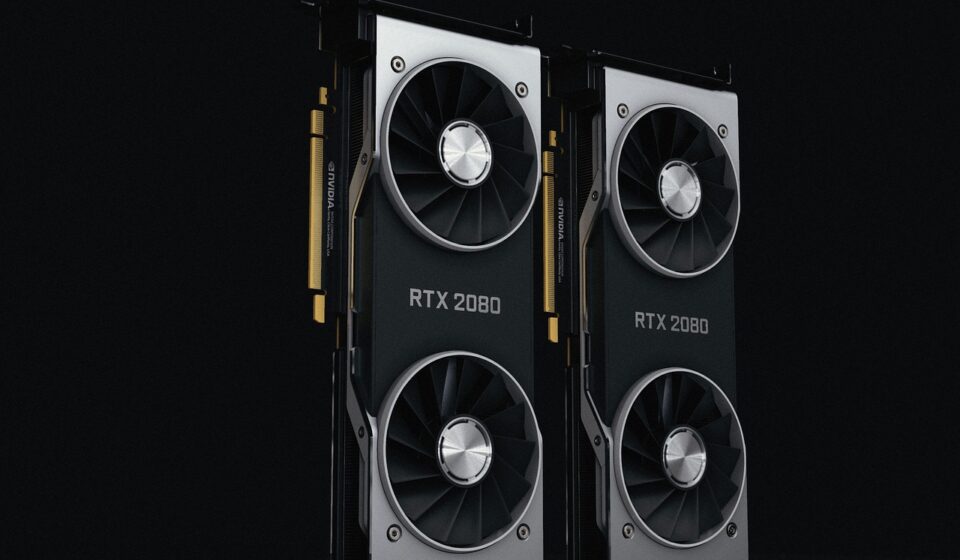
Learn more about hardware history and architectures from Nvidia.
Preventive steps to protect your graphics card
While hardware components eventually degrade over time, following proactive maintenance habits maximizes graphics card lifespan and keeps display signals clear:
- Maintain Dust Filters and Airflow: Clean case dust filters every 1 to 3 months. Preventing dust accumulation on heatsink fins keeps VRAM and core temperatures low, preventing thermal fatigue.
- Use GPU Support Brackets: Heavy modern graphics cards experience physical PCB bending (GPU sag) over time when mounted horizontally. Installing an anti-sag support bracket prevents strain on PCIe slot traces and solder joints under VRAM modules.
- Clean Driver Updates: Perform clean driver installations periodically rather than repeatedly overwriting old drivers, preventing driver cache clutter and registry corruption.
- Avoid Pushing Aggressive Memory Overclocks: Running VRAM at extreme memory frequencies generates continuous heat strain on delicate GDDR memory chips, accelerating hardware failure.
Frequently asked questions
Can a faulty monitor cause green lines on an NVIDIA display?
Yes, physical display panel damage or a failing T-Con board inside the monitor can generate persistent green lines. You can confirm monitor failure if the green lines remain visible when opening the monitor’s built-in OSD menu with no PC connected.
Is it safe to continue using my NVIDIA GPU if it shows green lines?
It is not recommended to continue running a GPU exhibiting green lines, particularly if overheating or failing VRAM causes the artifacting. Operating a degrading card under load can cause permanent thermal stress, total board failure, or sudden system crashes.
How much does it typically cost to fix green lines on a graphics card?
Out-of-warranty hardware repairs for VRAM chip replacement or GPU core reballing generally cost $150 to $300 through specialized repair technicians. For older or mid-range graphics cards, replacing the GPU entirely is usually more cost-effective than professional board-level repair.
Will NVIDIA replace my graphics card if it has green lines?
If your graphics card is still within its manufacturer warranty period (typically 3 years for Founders Edition and major partner cards like ASUS, MSI, or Gigabyte) and shows green lines due to component failure, the manufacturer will repair or replace the card under RMA.
What is the lifespan of an NVIDIA graphics card?
An NVIDIA graphics card generally lasts between 3 to 7 years depending on operating temperatures, usage intensity, and maintenance. Keeping temperatures under 80°C and maintaining clean power delivery extends operational lifespan.
How do I know if my graphics card is dying or just has a driver issue?
Driver issues cause intermittent visual glitches, driver crash notifications, or lines that disappear in screenshots and Safe Mode. Hardware failure causes persistent green lines across the BIOS screen, artifacts inside screenshots, and memory errors during VRAM stress tests.