Green lines on an NVIDIA screen are usually caused by a loose cable, corrupted graphics drivers, GPU overheating, or failing video memory (VRAM). You can fix software or connection glitches by reseating display cables, updating or cleanly reinstalling drivers using Display Driver Uninstaller, and checking card temperatures.
How to isolate the cause of green lines in three steps
Before changing software settings or purchasing replacement hardware, perform three quick tests to determine whether the problem stems from your display panel, the video cable, software drivers, or the graphics card itself.
1. Take a screenshot
Press the Windows Key + Print Screen or use the Snipping Tool to capture an image of your display. Open that screenshot on a different device, such as a phone or tablet, or zoom in and move the saved image file across your screen. If the green lines move along with the image or appear inside the screenshot on another device, the corruption is occurring inside the graphics pipeline—pointing directly to corrupted drivers, unstable software, or failing video memory (VRAM). If the screenshot appears completely clean when viewed elsewhere or does not show the lines when saved, your GPU rendered the frame correctly. The issue lies downstream in the display cable, video port, or monitor panel.
2. Open your monitor’s physical menu
Press the physical menu button on your monitor frame to bring up the On-Screen Display (OSD) settings menu. Watch where the green lines appear relative to the menu box. If the lines cover or distortion passes through the monitor’s built-in menu, the display panel or internal scaler board is physically damaged. If the monitor menu renders cleanly on top of the green lines without any visual corruption inside the menu box, your display panel is functioning properly, and the signal source is at fault.
3. Boot into the BIOS screen
Restart your computer and repeatedly press Delete or F2 to enter the motherboard BIOS/UEFI screen before Windows loads. If the green lines remain visible inside the BIOS, operating system updates and NVIDIA drivers are ruled out. This confirms a hardware-level problem, such as a damaged cable, poor PCIe slot seating, overheating, or physical GPU failure.
Why green lines appear on an NVIDIA screen
Visual distortion on an NVIDIA display ranges from thin, single-pixel vertical lines to thick horizontal green bands, scattered pixel clusters, or uniform checkerboard grid patterns. Understanding the underlying trigger helps you select the correct repair path without wasting time on unnecessary fixes.
- Driver file corruption: Incomplete driver updates, registry conflicts, or corrupted system files send bad display data to your monitor, producing screen artifacts.
- Signal degradation: Loose, damaged, or unshielded HDMI and DisplayPort cables drop signal packets, manifesting as flickering green lines or pixel noise across higher resolutions.
- Overheating and thermal stress: Accumulated dust, dried thermal paste, or failed cooling fans elevate GPU core and VRAM junction temperatures above safe operational limits, causing hardware instability.
- Video RAM (VRAM) failure: Faulty memory modules on the graphics card fail to hold texture and frame data correctly, producing repeating green patterns or “space invaders” artifacts across the screen.
- Power delivery issues: Voltage drops on the 12V rail from an inadequate or aging power supply unit (PSU) prevent the GPU from maintaining stable clock speeds during graphical load.
- PCIe slot misalignment: Heavy graphics cards sagging in the motherboard expansion slot can cause poor pin contact, interrupting data transfer between the CPU and GPU.
How to fix connection and monitor problems
Physical connections and display configuration mismatches cause a high percentage of screen line errors. Follow these steps to verify your hardware setup.
Reseat and inspect display cables
Turn off your computer and display. Unplug both ends of your video cable. Inspect the connector pins on the HDMI or DisplayPort cable for bends, debris, or broken plastic. Reconnect both ends firmly, ensuring the locking latches engage on DisplayPort connectors. If you use laptop displays, see TCP Port 27: What Is It and Why Does It Matter? for diagnosing display flex cables.
Test alternate ports and cables
NVIDIA graphics cards typically feature multiple DisplayPort outputs and one or two HDMI ports. Swap your cable into a different port on the back of the card. Connect your PC using a fresh, certified DisplayPort 1.4 or HDMI 2.1 cable to ensure adequate signal bandwidth, particularly when driving 144Hz, 240Hz, or 4K displays. Avoid unpowered or cheap passive display adapters, which frequently introduce signal timing errors.
Check display resolution and refresh rate
Mismatches between Windows display settings and monitor hardware capabilities cause signal loss. Right-click your desktop, open Display settings, and select Advanced display. Verify that the resolution matches your monitor’s native panel resolution and set the refresh rate to its recommended factory spec. If the green lines clear when lowering your refresh rate from 144Hz to 60Hz, your current video cable lacks the bandwidth required for high refresh rates.
Reseat the graphics card in the PCIe slot
Power down the PC, switch off the power supply, and disconnect the wall power cord. Open the side panel, disconnect the PCIe power cables, unscrew the retention bracket from the case frame, and push down the PCIe slot retention latch on the motherboard. Pull the card straight out. Clean dust out of the PCIe slot using compressed air. Slide the card back into the main PCIe x16 slot until the lock clicks firmly into place, reattach the mounting screws, and reconnect the power cables.
How to clean install NVIDIA drivers with DDU
Standard driver updates often leave behind legacy configuration files or registry keys that cause persistent display corruption. Performing a completely clean removal using Display Driver Uninstaller (DDU) eliminates software conflicts.
- Download the latest official WHQL driver for your graphics card model from the official NVIDIA website and save the installer file to your desktop.
- Download the latest version of Display Driver Uninstaller (DDU) from Wagnardsoft and extract the folder.
- Disconnect your PC from the internet (unplug Ethernet or disable Wi-Fi) to stop Windows Update from automatically installing a generic driver during restart.
- Hold down the Shift key while clicking Restart in the Windows Start menu. Select Troubleshoot > Advanced options > Startup Settings > Restart, then press 4 or F4 to enter Safe Mode.
- Open DDU in Safe Mode. Select GPU under device type and choose NVIDIA.
- Click Clean and restart. DDU will wipe all existing NVIDIA display files, audio drivers, and registry entries, then automatically reboot Windows.
- Once Windows reboots, run the NVIDIA driver package you downloaded in Step 1. Select Custom (Advanced) installation and check Perform a clean installation.
- Complete the installation process, reconnect your internet connection, and restart your computer normally.
Rolling back to a stable driver release
If green lines appeared immediately after installing a newly released Game Ready Driver, the update may contain a bug affecting your specific hardware configuration. Repeat the DDU removal process outlined above, but install an older WHQL driver version released one or two months prior to resolve the issue.
How to monitor GPU temperatures and adjust clock settings
Excess heat causes semiconductor components to miscalculate frame data, while unstable overclocks force GPU cores beyond their physical limits.
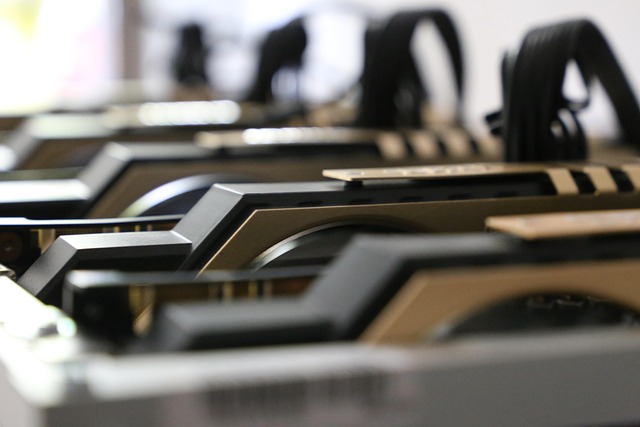
Checking GPU core and memory temperatures
Install hardware monitoring tools like MSI Afterburner or HWMonitor. Run a light graphical application while observing readings. Healthy target ranges for modern NVIDIA graphics cards include:
- Idle temperature: 30°C to 45°C (86°F to 113°F)
- GPU core load temperature: 65°C to 83°C (149°F to 181°F)
- GPU hotspot / VRAM junction temperature: 80°C to 95°C (176°F to 203°F)
If your core temperature exceeds 85°C or VRAM junction temperature spikes above 105°C, your GPU will thermal throttle and render visual artifacts. Clear accumulated dust from the graphics card heatsink, clean fan blades with a soft brush, and verify that all case fans are drawing cool air through your chassis.
Restoring factory clock speeds
If you have applied custom clock offsets or memory overclocks using MSI Afterburner, EVGA Precision, or manufacturer software, revert all settings to stock baseline. High memory overclocks frequently trigger green pixel dots or horizontal micro-lines long before causing complete system crashes. Open your overclocking software, click the reset button to restore default clock speeds and voltage parameters, and apply the profile.
Power limit testing and undervolting
If your card runs hot or crashes under full load, open MSI Afterburner and lower the Power Limit This reduces peak power consumption and heat output with minimal impact on frame rates. If green lines vanish when power consumption drops, your GPU was either overheating or your power supply is struggling to output stable voltage under maximum load.
Diagnosing VRAM failure and power supply issues
When physical components inside the graphics card degrade, software fixes will not resolve the issue. Recognizing the signs of component failure prevents wasted effort.
Identifying VRAM failure patterns
Video RAM corruption presents distinct visual signatures compared to software errors or cable faults:
- Space invaders pattern: Small green or purple repeating bracket-shaped symbols spread uniformly across screen textures during 3D rendering.
- Green grid lines: A rigid, repeating checkerboard layout of green squares or dots that stays fixed in place regardless of open windows.
- Texture stretching: Visual geometry stretching into long spikes or colored bands across 3D game environments.
To confirm memory errors, run dedicated hardware testing utilities such as OCCT. Select the VRAM Test If the software reports memory read or write errors, one or more GDDR memory chips on your graphics card are defective.
Checking power delivery and PCIe wiring
NVIDIA graphics cards demand clean, uninterrupted power. Ensure you are using separate PCIe power cables routed directly from your power supply to each connector on the graphics card. Avoid using single “daisy-chained” pigtail cables to feed high-draw cards, as voltage sag on a single cable can cause GPU instablity and rendering glitches during power spikes. If you suspect panel damage on portable hardware, read NVIDIA Green Lines on Screen: Troubleshooting & Fixes for LCD troubleshooting.
Troubleshooting options compared
| Symptom | Likely Root Cause | Diagnostic Step | Recommended Fix |
|---|---|---|---|
| Green lines move in screenshots | Driver corruption or unstable VRAM | Take desktop screenshot, view on phone | Run DDU in Safe Mode, reset overclocks |
| Green lines appear inside monitor OSD menu | Damaged LCD panel or monitor scaler board | Press monitor physical menu button | Replace display cable or monitor panel |
| Lines appear in BIOS before Windows boots | Hardware failure, cable fault, loose card | Boot into motherboard BIOS screen | Reseat GPU, swap video cable, test PSU |
| Green checkerboard grid during gaming | VRAM physical failure or thermal degradation | Run OCCT VRAM test, monitor temperatures | Clean heatsink, repaste card, or submit RMA |
| Flickering green lines at high refresh rates | Insufficient video cable bandwidth | Lower refresh rate from 144Hz to 60Hz | Upgrade to certified DisplayPort 1.4/HDMI 2.1 cable |
Preventative measures for long-term GPU health
Extending the operational lifespan of your graphics card requires maintaining clean physical conditions and stable power delivery.
- Clean dust regularly: Use compressed air every three to six months to clear dust build-up from heatsink fins, fan hubs, and case intake filters.
- Install a GPU support bracket: Prevent mechanical strain on the motherboard PCIe slot and physical solder joints under memory chips by supporting heavy modern graphics cards with an anti-sag bracket.
- Maintain case ventilation: Ensure your computer case has balanced intake and exhaust airflow to keep ambient internal temperatures low.
- Use quality power hardware: Power your system with an 80-Plus certified power supply from a reputable brand, sizing total wattage at least 20% above your system’s peak requirements.
- Avoid extreme overclocks: Keep voltage levels and memory clock offsets within safe manufacturer parameters to prevent premature silicon breakdown.
Related guides
- NVIDIA Green Lines on Screen: Troubleshooting & Fixes
- Lines on Laptop Screen: Causes, Fixes & Prevention
- Laptop LCD Lines: Causes, Fixes, and When to Replace
Sources: Nvidia
Frequently asked questions
What does it mean when green lines appear on an NVIDIA screen?
Green lines indicate a breakdown in frame generation or signal transmission, caused by corrupted drivers, damaged cables, overheating, or physical VRAM failure. Isolating the issue requires testing monitor settings, taking screenshots, and verifying cable integrity.
Can a bad driver cause green lines on my screen?
Yes, corrupted driver files or failed updates can cause severe visual artifacts including green lines and screen flickering. Performing a clean removal using Display Driver Uninstaller (DDU) in Safe Mode usually fixes driver-related corruption.
How do I know if green lines are caused by my monitor or my graphics card?
Open your monitor’s built-in OSD menu using physical buttons on the display. If the green lines appear over the menu text, the monitor panel or scaler is damaged; if the menu renders cleanly above the lines, the graphics card or video cable is at fault.
Is my GPU dead if it shows green lines on boot-up?
Not necessarily, as loose display cables, bad PCIe slot connections, or monitor faults can also cause lines on startup. However, if lines persist across different monitors and cables during BIOS boot, the graphics card likely has physical memory or core damage.