
A shadow on computer monitor screens usually stems from pixel ghosting caused by improper overdrive settings, an incorrect refresh rate, a damaged display cable, or temporary image persistence. You can usually fix it by adjusting your monitor’s response time setting, re-seating or replacing video cables, updating graphics drivers, or power-cycling the display to reset panel pixels.
Visual artifacts on a display screen can range from faint trails behind moving objects to dark, stationary patches across a panel. A Shadow on computer monitor panels disrupts work, distorts text readability, and ruins color accuracy. Systematic troubleshooting helps identify whether the shadow is caused by a software setting, an electrical signal issue, or an internal hardware failure.
What causes a shadow on a computer monitor?
The term “shadow” describes several distinct visual symptoms on modern computer monitors. Identifying the exact behavior of the artifact isolates the root cause before you attempt repairs.
Pixel ghosting and overshoot: Liquid crystal display (LCD) panels rely on physical crystals twisting to pass or block light. If the pixels change color too slowly, moving elements leave behind a faint trailing replica, known as ghosting. Conversely, if your monitor applies excessive voltage to accelerate pixel transitions (a setting called overdrive), the liquid crystals overshoot their target color. This creates a bright or dark reversed halo behind moving objects, known as inverse ghosting.
Image persistence and retention: Displaying static content, such as software toolbars, taskbars, or window borders, for extended periods can temporarily trap charge within liquid crystal cells or degrade organic compounds on OLED screens. This leaves a ghost-like shadow of the static image visible even when you switch to another application.
Cable degradation and signal reflection: Video cables transmit high-bandwidth digital data or analog signals. Loose connectors, bent pins, or poorly shielded HDMI, DisplayPort, DVI, or VGA cables introduce signal reflection and electromagnetic interference. On legacy analog VGA lines, impedance mismatches cause ringing, which creates a faint duplicate shadow shifted horizontally to the right of text and lines. On digital cables, severe interference leads to pixel dropouts or visual trailing.
Backlight and diffuser panel failure: Liquid crystal panels do not produce light on their own; they rely on an internal light source. Edge-lit and direct-lit LED backlights use arrays of light-emitting diodes behind diffusing sheets to spread illumination evenly. When individual LED strips burn out, or when internal plastic diffuser sheets warp from heat, physical dark patches, horizontal dark lines, or cloudy shadows appear across sections of the screen.
Panel glow and backlight bleed: In-Plane Switching (IPS) panels and Vertical Alignment (VA) panels suffer from optical characteristics that can resemble shadows. IPS glow manifests as dark or bright haze in panel corners when viewed at off-center angles. Backlight bleed occurs when light leaks through panel seams, causing uneven dark and light patches across dark scenes.

How to diagnose the exact type of shadow on your screen
Perform these four tests to pinpoint the origin of your display issue within minutes:
- The Built-In OSD Menu Test: Disconnect the video cable from your computer, leaving only the monitor’s power cable plugged in. Turn on the display and press the physical buttons to open the monitor’s On-Screen Display (OSD) menu. If the shadow or dark spot appears directly over or behind the OSD menu items, the issue lies within the monitor’s physical panel or backlight. If the OSD menu is crystal clear, the problem stems from your PC, cable, or graphics card.
- The Cursor and Window Movement Test: Drag an open window or mouse cursor across a light background. If a faint trail follows the cursor only while moving and disappears when static, you are dealing with pixel response ghosting or incorrect overdrive settings.
- The Full-Screen Color Uniformity Test: Fill your screen with a solid gray background, then a solid white background. If dark shapes, faint lines, or static window outlines remain in exact positions despite changing application windows, you are observing image persistence, burn-in, or physical backlight strip failure.
- The Secondary Device Swap Test: Connect your monitor to another PC, laptop, or console using a secondary cable. If the shadow vanishes on the second device, your primary computer’s graphics drivers, resolution settings, or GPU hardware are responsible.
Step-by-step fixes for monitor shadows
Work through these solutions in sequence, starting with basic hardware checks before adjusting operating system software.
Check and replace video cables and port connections
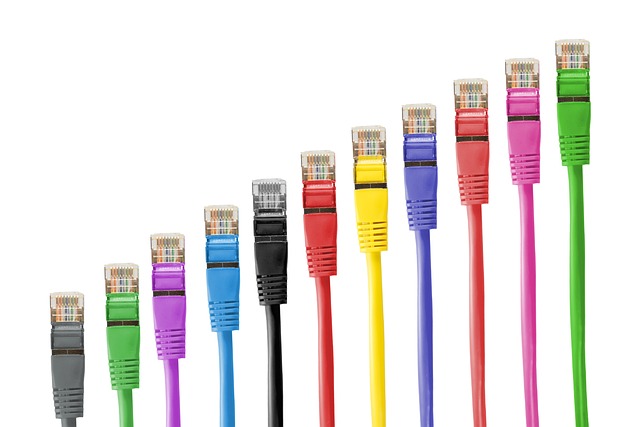
Loose cables and damaged connectors cause signal attenuation, leading to image double-edges and visual noise.
- Power down your computer and monitor.
- Disconnect the video cable (HDMI, DisplayPort, DVI, or VGA) from both the display and the graphics card.
- Inspect cable connectors for bent pins, debris, or broken latch mechanisms.
- Re-seat the cable firmly into the primary graphics card port rather than motherboard video ports. Tighten thumb-screws if using VGA or DVI cables.
- If trailing persists, switch to a certified high-speed cable. High-refresh-rate monitors operating at 144Hz or 240Hz require DisplayPort 1.4 or HDMI 2.1 cables to handle the required data throughput without signal degradation.
Adjust response time and monitor overdrive settings
Monitor manufacturers include overdrive technology to accelerate pixel transitions. However, setting overdrive too high causes severe pixel overshoot, resulting in inverse ghosting shadows.
- Press the physical control buttons on your monitor to open the On-Screen Display (OSD) menu.
- Navigate to settings labeled Response Time, Overdrive, Trace Free, or SmartResponse.
- Change the setting from “Extreme”, “Ultra”, or “Fastest” down to “Normal”, “Medium”, or “Fast”.
- If you observe dark trailing behind moving text, disable motion blur reduction features such as ELMB (Extreme Low Motion Blur), ULMB, or Aim Stabilizer, as backlight strobing can induce visual secondary artifacts.
- Save the menu settings and test window movement across your screen.
Configure display refresh rate and resolution settings
Running a high-refresh-rate monitor at a default 60Hz setting or setting an unrecommended resolution forces your operating system to downsample images, inducing blur and ghosting.
For Windows 10 and Windows 11:
- Right-click any empty space on your desktop and choose Display settings.
- Scroll down and select Advanced display settings.
- Under “Choose a refresh rate”, select the highest native frequency supported by your monitor (e.g., 144Hz, 165Hz, or 240Hz).
- Return to the main display menu and verify that Display resolution matches your monitor’s native hardware spec (e.g., 1920×1080, 2560×1440, or 3840×2160). Native resolution is marked as “Recommended”.
For macOS:
- Open the Apple Menu and select System Settings.
- Click Displays in the side menu.
- Set resolution to Default for display.
- Click the Refresh Rate dropdown menu and select the highest available frequency for your screen.
Reinstall or clean-update graphics drivers
Corrupted display drivers prevent your graphics card from managing monitor timing signals and variable refresh rates (VRR) correctly. Outdated drivers from NVIDIA, AMD, or Intel can manifest as erratic screen shadows and visual artifacts.
- Download the newest official driver package for your hardware from the official site:
- To perform a complete cleanup, download Display Driver Uninstaller (DDU). Boot your system into Safe Mode, run DDU to clean old driver remnants, and restart your PC.
- Install the downloaded driver installer file, select Custom / Clean Installation, and complete the wizard.
- Reboot your computer and re-enable G-Sync or FreeSync inside your GPU control panel.
Run pixel refresh cycles and image retention fixes
If your screen shows faint background shadows of previously displayed static windows, perform pixel-refreshing procedures to restore clear image state.
- Turn off your monitor completely and disconnect its power cord for 2 to 4 hours. This permits panel capacitors to discharge and liquid crystals to relax to their neutral state.
- Enable built-in panel maintenance features:
- OLED Panels: Open your display’s OSD settings menu, locate options named Pixel Refresh, Panel Maintenance, or Pixel Cleaning, and initiate a manual cycle. Do not unplug the display while this cycle executes.
- LCD Panels: Display a full-screen dynamic white noise pattern or run an animated color-cycling video for 1 to 2 hours at high brightness to exercise stuck pixels.
- Set your desktop wallpaper to a solid dark color and auto-hide your taskbar to prevent recurrent retention patterns.

Disable third-party screen overlays and drop-shadow effects
Software overlays and visual enhancements can generate synthetic shadows around active application windows, compounding display artifacts.
- Disable third-party software overlays like Discord, GeForce Experience, RivaTuner Statistics Server, or Steam overlays during initial system troubleshooting.
- Disable Windows visual shadows: Press Windows Key + R, type
sysdm.cpl, press Enter, go to the Advanced tab, and click Settings under Performance. Uncheck Show shadows under windows and click Apply.
Comparing shadow causes and recommended solutions
Use this decision matrix to identify your monitor shadow type and choose the most effective repair path:
| Shadow Type | Visual Appearance | Root Cause | Primary Solution |
|---|---|---|---|
| Motion Ghosting | Dark, faint trailing behind moving objects or cursor | Slow liquid crystal GtG response times | Increase monitor refresh rate; lower overdrive setting |
| Inverse Ghosting | Bright or dark halo trailing behind moving windows | Excessive overdrive voltage (pixel overshoot) | Reduce OSD Overdrive / Trace Free setting to Medium or Off |
| Image Retention | Faint static outlines of taskbars or past windows | Temporary electrical charge trapped in pixels | Run pixel refresh; leave monitor powered off overnight |
| Signal Ringing | Double edge or duplicate line offset horizontally | Analog VGA interference or damaged HDMI/DP cable | Replace video cable with a high-bandwidth shielded cable |
| Backlight Dark Patch | Large, permanent dark band or spot on screen | Burned out LED backlight strip or failed diffuser sheet | Replace internal LED array strips or replace monitor panel |
When is a monitor shadow caused by internal hardware failure?
If software changes, driver reinstalls, and new cables fail to eliminate screen shadows, an internal component fault within the monitor is the primary cause.
Failed LED backlight arrays: Direct-lit and edge-lit LED displays use series-connected light strips. When an individual diode or an entire circuit strip fails, the section of the screen directly above it loses illumination. This appears as a vertical or horizontal dark bar across the display. Backlight failures remain static regardless of display resolution or input device.
Physical panel delamination and heat damage: Prolonged exposure to high heat causes optical diffuser layers within the panel assembly to warp or separate from the glass substrate. This creates permanent blotchy dark shadows that resemble water marks or clouding. Liquid crystal leakage caused by physical impact also leaves permanent dark spots.
Repair vs. replacement considerations: Repairing internal monitor components requires disassembling the panel housing and working with high-voltage power boards. Replacing individual backlight strips requires technical soldering and clean-room conditions to prevent dust from entering panel layers.
How to prevent monitor shadows from returning
Follow these operational best practices to preserve display panel health and avoid visual defects:
- Configure dynamic sleep timers: Set your operating system screen timeout to turn off displays after 5 to 10 minutes of inactivity. This prevents static image retention on LCD and OLED displays.
- Keep overdrive settings balanced: Avoid setting monitor overdrive to “Extreme” or “Max”. Medium overdrive settings provide optimal response times without inducing pixel overshoot.
- Use certified, high-quality video cables: Avoid using unshielded video cables, low-grade adapter dongles, or extended cable runs over 3 meters without active signal amplification.
- Maintain adequate ventilation: Ensure air vents on the back and top of your monitor are unobstructed. Excessive thermal buildup degrades LED backlight efficiency and damages liquid crystal layers over time.
- Avoid maximum display brightness: Operating displays at 100% brightness continuously accelerates LED backlight degradation and thermal wear. Keep screen brightness between 30% and 60% for typical indoor lighting.
Frequently asked questions
What is the difference between screen ghosting and burn-in?
Screen ghosting occurs during motion when liquid crystal pixels react too slowly to state changes, leaving temporary trails behind moving objects. Burn-in or image persistence occurs when static images leave permanent or semi-permanent ghost outlines visible on static backgrounds.
Can a damaged HDMI cable cause a shadow on my screen?
Yes, a damaged or poorly shielded HDMI cable can cause signal interference, crosstalk, and timing errors, creating horizontal trails, ghost lines, or fuzzy edges around text and objects.
How do I know if my monitor backlight is failing?
If you observe large, dark patches or horizontal bars that remain on screen even when entering the monitor’s built-in OSD menu with no computer connected, an internal LED backlight strip or power driver has failed. System troubleshooting steps like updating software will not clear hardware defects.
Will lowering display brightness fix pixel ghosting?
Lowering brightness will not fix motion ghosting directly, as response time depends on pixel voltage transitions. However, adjusting brightness and lowering overdrive levels reduces visual halo perception and prevents rapid thermal wear across the LCD panel.