NVIDIA green lines on screen are usually caused by damaged display cables, corrupted graphics drivers, or GPU hardware failure such as overheating or failing VRAM. You can fix this by reseating your cables, performing a clean driver reinstallation using Display Driver Uninstaller (DDU), or testing the card on another display.
Green lines on a display can present in several distinct ways: fine vertical green lines spanning the entire height of the monitor, horizontal green dashes across rendered textures, or thick green bands that flicker during 3D loads. Identifying the pattern and timing of these lines is critical, as a loose cable produces very different visual artifacts than a failing video memory chip.
How do you tell if green lines are software or hardware?
Before disassembling your PC or ordering replacement parts, you can run quick diagnostic checks to narrow down whether the issue stems from software settings, physical connections, or actual GPU silicon failure. The key indicator is whether the lines appear before your operating system loads.
If green lines are visible on your motherboard splash screen or inside the BIOS/UEFI settings before Windows boots, software drivers are not responsible. At that early stage, Windows drivers have not loaded, meaning the cause is physical: a bad cable, a loose connection, a faulty monitor, or physical GPU damage. Conversely, if the screen displays perfectly clean images during startup and only shows green lines after logging into Windows or launching a game, software or driver corruption is far more likely.
| Symptom Pattern | Most Likely Cause | First Recommended Action |
|---|---|---|
| Single static vertical green line | Monitor panel fault or loose ribbon cable inside display | Test monitor with another source or open OSD menu |
| Random green dashes or “space invaders” shapes | Failing GPU video memory (VRAM) or memory overheating | Check VRAM temperatures; underclock memory in MSI Afterburner |
| Flickering green lines that change when touching the wire | Damaged or loose DisplayPort / HDMI cable | Reseat cable firmly or swap with a certified replacement |
| Green lines appearing only inside web browsers or media players | Hardware acceleration conflict with graphics drivers | Disable hardware acceleration in browser settings |
| Green lines appearing only during intensive gaming | GPU core/VRAM overheating or power delivery instability | Monitor temperatures and clean dust from GPU heatsink |
Step-by-step software fixes for NVIDIA green lines
Software conflicts and corrupted display drivers frequently cause artifacting on NVIDIA graphics cards. Performing a thorough clean driver setup fixes the majority of non-hardware display issues.
1. Perform a clean driver installation with DDU
Simply updating drivers through GeForce Experience or Windows Update often leaves behind corrupted configuration files and registry entries. A complete driver scrub using Display Driver Uninstaller (DDU) eliminates these remnants.
- Download the latest official NVIDIA driver package for your specific GPU model from the official NVIDIA website and save it to your desktop.
- Download Display Driver Uninstaller (DDU) from a trusted source.
- Disconnect your PC from the internet by unplugging your Ethernet cable or disabling Wi-Fi. This prevents Windows Update from automatically installing a generic driver during the process.
- Boot Windows into Safe Mode (Hold Shift while clicking Restart in the Start Menu, then choose Troubleshoot > Advanced options > Startup Settings > Restart, and select option 4).
- Run DDU, select GPU as the device type and NVIDIA as the device, then click Clean and restart.
- Once Windows reboots normally, double-click the NVIDIA installer you downloaded earlier. Select Custom (Advanced) installation and check the box for Perform a clean installation.
- Reconnect your internet after the installation completes.
2. Roll back to a stable driver release
Newer driver updates occasionally introduce display bugs on specific GPU architectures or multi-monitor setups. If green lines appeared immediately after a driver update, rolling back to an earlier driver version resolves the bug.
To roll back via Windows Device Manager: right-click the Start button, select Device Manager, expand Display adapters, right-click your NVIDIA card, select Properties, click the Driver tab, and choose Roll Back Driver. If the button is greyed out, manually download an older WHQL-certified driver version from NVIDIA’s driver archive and run a clean installation.
3. Adjust display resolution, refresh rate, and DSC settings
High-refresh-rate monitors pushing 144Hz, 240Hz, or higher push display interfaces to their bandwidth limits. Display Stream Compression (DSC) bugs or improper custom refresh rates can manifest as thin green horizontal scan lines.
Right-click your desktop and select Display settings > Advanced display. Lower your refresh rate from high settings (e.g., 144Hz) down to 60Hz. If the green lines disappear instantly at 60Hz, your cable lacks the bandwidth required for higher refresh rates, or the monitor’s display panel controller is struggling at high refresh rates.
4. Disable browser and application hardware acceleration
If green lines or checkerboard artifacts only pop up when watching video on YouTube, Netflix, or browsing in Chrome, Edge, or Discord, hardware acceleration is conflicting with the GPU’s video decoding block. In Chrome or Edge, go to Settings > System and toggle off “Use graphics acceleration when available”. Restart the browser to verify if the lines disappear.
Hardware checks to isolate cables, monitors, and connections
When software adjustments fail to resolve display artifacts, physical hardware must be systematically checked. Isolate components one by one so you do not replace a functional graphics card unnecessarily.
1. The monitor built-in menu test
Press the physical menu button on your monitor to open its On-Screen Display (OSD) menu. Pay close attention to whether the green lines appear on top of the monitor’s menu box or behind it.
If the green line cuts directly through the monitor’s built-in menu text and graphics, the monitor itself has an internal failure, such as a damaged LCD panel or a faulty T-CON board. The graphics card is completely innocent in this scenario. If the green lines appear behind the monitor menu but not over the menu text, the signal reaching the monitor from the PC is corrupted.
2. Cable inspection and interface testing
Display cables are fragile. Sharp bends, tight cable ties, or worn connectors lead to signal loss across high-speed data lanes, creating green visual artifacts.
- Unplug both ends of your DisplayPort or HDMI cable and check for bent or recessed pins inside the connectors.
- Wiggle the cable gently near the GPU and monitor plug heads while watching the screen. If the green lines flash, move, or vanish when touched, replace the cable immediately.
- Switch from HDMI to DisplayPort, or vice versa. Different ports on the graphics card use distinct physical display pipelines; testing another port confirms if a single output port on the GPU is damaged.
3. Reseat the GPU and power cabling
Heavy triple-fan graphics cards cause PCIe slot sag over time, which can pull the card’s gold contacts slightly out of alignment with the motherboard PCIe socket. Poor contact leads to signal transmission errors across the PCIe bus.
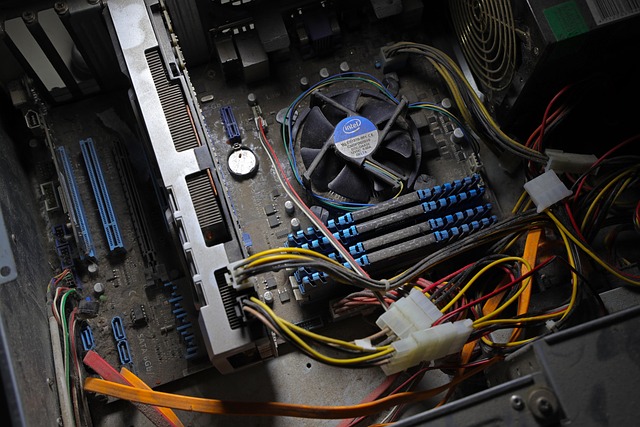
Shut down the computer, switch off the power supply unit (PSU), and unplug the wall cord. Disconnect the PCIe power cables from the card. Unscrew the mounting bracket from your PC case, press the PCIe slot latch, and carefully pull the graphics card out. Wipe the card’s gold PCIe pins with a lint-free microfiber cloth. Reinsert the card firmly into the top PCIe x16 slot until the latch clicks, resecure the mounting screws, and reconnect all power cables tightly.
Pay close attention to 12VHPWR (16-pin) connectors on modern NVIDIA GPUs. If these high-power cables are not fully seated flush against the connector housing, uneven voltage delivery cause core instability and visual artifacts.
Diagnosing GPU physical hardware failure and overheating
When software fixes, clean cabling, and secondary monitors all confirm that the issue originates from the NVIDIA card itself, physical component wear or thermal degradation is the root cause.
1. Monitoring temperatures and hotspot delta
Excessive heat breaks down electrical stability in silicon. While a GPU core temperature of 75°C (167°F) is normal under full gaming load, other internal temperature sensors may reveal extreme overheating.
Download diagnostic tools like HWInfo64 or GPU-Z to inspect three crucial thermal metrics under load:
- GPU Core Temperature: Should ideally remain under 83°C (181°F).
- GPU Hotspot Temperature: Measures the single hottest sensor spot on the GPU die. If the hotspot exceeds 100°C (212°F) or sits more than 20°C above the core temperature, thermal paste on the GPU die has dried out or pumped out, leaving dry spots.
- GPU Memory (VRAM) Temperature: High-speed GDDR6 and GDDR6X VRAM modules run significantly hotter than the core. VRAM temperatures consistently hovering above 105°C (221°F) cause video memory errors that show up as green dots, dashes, or full lines.
If thermal readings are excessive, cleaning dust from the heatsink fins with compressed air, replacing worn thermal pads, and repasting the GPU die with high-viscosity thermal compound often resolves thermal-induced green lines.
2. Identifying VRAM artifacting patterns
Video RAM (VRAM) failure is the single most common cause of permanent green line artifacts on NVIDIA GPUs. When individual memory blocks fail, data written to VRAM becomes corrupted before being output to the display.
Classic symptoms of VRAM failure include:
- Green horizontal dashes scattered evenly across the screen in a repeating grid pattern (often referred to as “space invaders” artifacts).
- Full-screen green line bursts when launching 3D games, followed by a game crash or driver crash (`VIDEO_TDR_FAILURE`).
- Display corruption that worsens as memory usage increases in high-resolution games.
To verify VRAM instability, open MSI Afterburner and lower the Memory Clock (MHz) slider by -200 MHz to -500 MHz. Click Apply. If underclocking the video memory causes the green lines to disappear or reduces their frequency, one or more VRAM chips on the card have degraded and can no longer run stably at stock factory frequencies.

3. Running memory stress tests
You can run dedicated GPU memory diagnostic tools such as OCCT (using the GPU Memory Test tab) to test VRAM integrity. The utility writes diagnostic data patterns to memory blocks and checks for readback errors. If the test returns thousands of memory errors within seconds, hardware failure of the VRAM chips or solder BGA joints under the VRAM is confirmed.
Repair options, warranty claims, and replacement decisions
Once hardware failure is confirmed, evaluating repair options against replacement costs prevents unnecessary spending.
Submitting a warranty claim (RMA)
If your graphics card was purchased within its manufacturer warranty period (typically 3 years for major brands like ASUS, MSI, Gigabyte, Zotac, and PNY), submit a Return Merchandise Authorization (RMA) request. Keep detailed documentation of the troubleshooting steps you performed, as customer support will request them. Note that physical modifications, such as mounting custom liquid cooling blocks or improper repasting that damages components, may void standard warranties.
Out-of-warranty hardware repair vs replacement
Repairing broken VRAM chips or reballing GPU BGA chips requires specialized micro-soldering equipment and professional repair technician labor. For older or mid-range graphics cards, the cost of professional component-level repair usually approaches or exceeds the second-hand market value of the card itself. In those cases, replacing the GPU with a current-generation model is the most practical financial decision.
How to prevent NVIDIA green lines from returning
Protecting your graphics hardware against signal loss and premature component degradation requires straightforward maintenance practices:
- Prevent GPU sag: Install an inexpensive GPU support bracket or kickstand to relieve mechanical stress on the PCIe slot and PCB trace lines.
- Maintain case airflow: Clean dust filters every 3 to 6 months to prevent ambient temperatures inside your case from cooking VRAM modules and power delivery MOSFETs.
- Avoid severe overclocks: Pushing memory clocks past stable voltage limits accelerates VRAM degradation over long gaming sessions.
- Use quality power delivery: Pair your hardware with an 80-PLUS rated power supply to protect sensitive GPU components against voltage spikes and ripple current.
- Avoid bending cables: Maintain a gentle curve when routing DisplayPort and HDMI cables behind desks or walls to protect internal shielding wires.
Knowing how software conflicts and hardware faults cause display artifacts ensures you can resolve green lines quickly, keeping your system running smoothly. Software issues are a common source of rendering bugs, but systematic testing isolating drivers, cabling, and silicon health will always pinpoint the exact fault on your Nvidia hardware.
Frequently asked questions
What is the most common cause of NVIDIA green lines on screen?
The most frequent cause is display cable instability or corrupted graphics drivers. However, persistent green dashes and pattern lines under heavy gaming load are usually tied to physical GPU video memory (VRAM) hardware failure or thermal overheating.
Can a loose or damaged cable cause green lines on a display?
Yes, loose or damaged DisplayPort and HDMI cables disrupt the digital data lanes carrying RGB signal information, which often manifests as flickering horizontal green lines or static. Reseating the connectors or testing a new cable immediately isolates this issue.
How do I know if the green lines are caused by my monitor instead of my GPU?
Open your monitor’s built-in On-Screen Display (OSD) menu using the physical buttons on the monitor casing. If the green line appears over top of the monitor’s menu graphics, the monitor panel or internal board is broken; if the line stays behind the menu text, the signal from your GPU or cable is at fault.
Does underclocking my GPU fix green line artifacts?
Underclocking your GPU memory in software like MSI Afterburner can temporarily stabilize degraded VRAM chips that fail at stock frequencies. While this may remove green lines and stop game crashes, it is a temporary workaround for a failing graphics card rather than a permanent repair.
Will NVIDIA repair or replace my graphics card for green line issues under warranty?
NVIDIA and card board partners cover GPU component defects and memory failures under their standard manufacturer warranty. If you have not physically damaged the card or voided warranty terms, you can submit an RMA claim for a repair or replacement.