nd NVMe drives.
- Installation is straightforward, often requiring simple cable connections and a drive bay.
- While slower than NVMe, SATA SSDs are more than sufficient for general computing, gaming, and office tasks.
- Choosing the right SATA SSD involves considering capacity, read/write speeds, endurance (TBW), and brand reputation.
2.5-inch sata solid state drive: What Exactly is a 2.5-Inch SATA SSD?
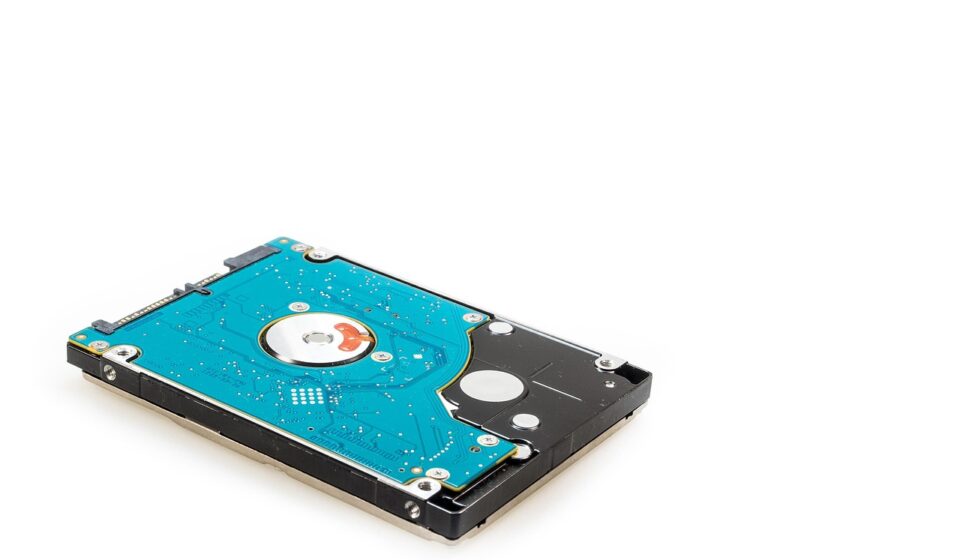
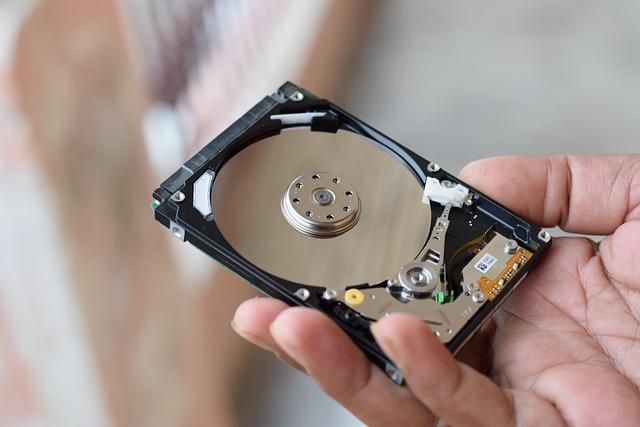
At its core, a 2.5-inch SATA solid-state drive is a type of computer storage device. Unlike traditional Hard Disk Drives (HDDs) that use spinning platters and a mechanical arm to read and write data, SSDs use flash memory chips. This fundamental difference is why SSDs are dramatically faster, more durable, and quieter.
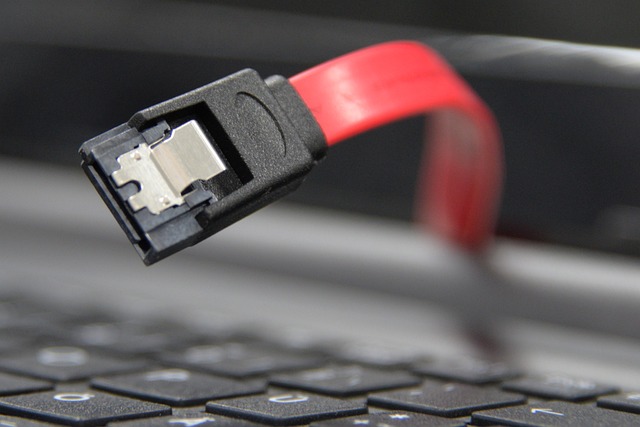
The “2.5-inch” refers to its physical form factor. This is the same size as a standard laptop hard drive, making it incredibly easy to swap into most laptops and desktop PCs that have a 3.5-inch bay with an adapter, or a dedicated 2.5-inch bay. The “SATA” (Serial Advanced Technology Attachment) is the interface, or communication pathway, that the drive uses to connect to your computer’s motherboard.
The SATA interface has gone through several iterations, with SATA III (also known as SATA 6Gb/s) being the most common and fastest version found in most modern computers. While NVMe (Non-Volatile Memory Express) drives, which connect via the much faster PCIe interface, are the current speed champions, SATA III still offers theoretical maximum speeds of up to 600 megabytes per second (MB/s). This is a massive improvement over the typical 100-150 MB/s of older SATA II interfaces or the even slower speeds of many HDDs.
Why SATA SSDs Still Matter in 2026
You might be wondering, with NVMe technology offering speeds many times faster than SATA, why would anyone still consider a 2.5-inch SATA SSD? The answer lies in a combination of factors that make them a sensible choice for a large segment of the market.
Firstly, compatibility. Many older computers, especially laptops released before 2015-2016, only have SATA ports. They simply can’t accommodate an NVMe drive, which requires an M.2 slot with PCIe support. For these systems, a 2.5-inch SATA SSD is the only viable SSD upgrade path, and it’s a major shift for their usability.
Secondly, value. As of June 2026, while NVMe prices have come down considerably, the cost per gigabyte for SATA SSDs often remains more competitive, particularly for mainstream consumer drives. For users who don’t have demanding workloads like heavy video editing or large-scale data analysis, the extreme speeds of NVMe might be overkill. A SATA SSD can provide a snappy, responsive computing experience for everyday tasks like browsing, office work, and even many games, at a significantly lower cost.
Thirdly, simplicity. Installing a 2.5-inch SATA SSD is generally a straightforward process. It involves connecting two cables: a SATA data cable to the motherboard and a SATA power cable from the power supply unit. This plug-and-play nature makes it an accessible upgrade for even novice PC builders or users looking to replace a failing drive.
The Performance Difference: SATA vs. NVMe
To truly appreciate the role of SATA SSDs, it’s crucial to understand how they stack up against their NVMe counterparts. The primary differentiator is the interface and protocol they use.
SATA (Serial ATA): This interface was originally designed for mechanical hard drives. While it has evolved to SATA III (6Gb/s), its underlying architecture is a bottleneck for the full potential of modern flash memory. Typical sequential read/write speeds for a SATA III SSD hover around 500-550 MB/s. This is still phenomenal compared to HDDs, but it’s the ceiling for this interface.
NVMe (Non-Volatile Memory Express): This protocol was designed from the ground up for SSDs. It uses the much faster PCIe (Peripheral Component Interconnect Express) bus, the same high-speed connection used by graphics cards. NVMe SSDs can achieve sequential read/write speeds that range from 3,000 MB/s for older PCIe Gen3 drives all the way up to 12,000 MB/s or more for the latest PCIe Gen5 drives. This is a difference of 6x to over 20x faster than SATA.
So, when does this speed difference matter? For tasks involving very large files or sustained high-speed data transfers, NVMe is the clear winner. Think professional video editing with uncompressed footage, massive database operations, or quickly copying terabytes of data. For the average user, however, the difference in boot times, application loading, and general system responsiveness between a good SATA SSD and a good NVMe SSD can be less dramatic than the raw numbers suggest. According to a 2025 tech review from PCWorld, “For 90% of users, the perceived speed difference between a SATA SSD and a PCIe Gen 4 NVMe SSD is negligible in daily use.” This means a SATA SSD is more than capable for most daily computing needs.
Who Should Buy a 2.5-Inch SATA SSD?
The decision to buy a 2.5-inch SATA SSD in 2026 boils down to your specific needs and hardware. Here are the primary user groups who will benefit most:
Upgrading Older Computers
If you have a desktop or laptop that’s five years old or more, it likely came with a mechanical hard drive. Replacing that HDD with a 2.5-inch SATA SSD is arguably the single most impactful upgrade you can make. Boot times can drop from minutes to seconds, applications will launch almost instantly, and the entire user experience becomes significantly more fluid. It breathes new life into aging hardware, making it feel modern and responsive again.
Budget-Conscious Builders and Users
Building a new PC or upgrading an existing one on a tight budget? SATA SSDs offer a fantastic entry point. You can often find 1TB SATA SSDs for prices that are significantly lower than their NVMe counterparts. 2.5-inch sata solid state drive allows you to allocate more of your budget to other components like the CPU or GPU, while still ensuring your operating system and frequently used applications benefit from fast storage.
Secondary Storage for Specific Tasks
Even if your primary boot drive is a fast NVMe SSD, a 2.5-inch SATA SSD can serve as excellent secondary storage. Use it for storing large game libraries, media files, or projects that don’t require the absolute fastest access speeds. For example, a gamer might keep their operating system and favorite fast-loading games on an NVMe drive, but store their extensive Steam library on a spacious and affordable 2TB SATA SSD. According to a 2026 report by Tom’s Hardware, “Diversifying storage with a mix of NVMe for OS/apps and SATA for bulk storage offers the best balance of performance and cost for most gaming rigs.”
Users with Limited M.2 Slots
High-end motherboards often feature multiple M.2 slots for NVMe drives. However, many mainstream or older motherboards may only have one, or even none. If you’ve already filled your M.2 slot with a primary NVMe drive, a 2.5-inch SATA SSD provides a simple and effective way to add more storage without needing to replace your existing NVMe drive or use a PCIe adapter card.
How to Choose the Right 2.5-Inch SATA SSD
With numerous brands and models on the market, selecting the best 2.5-inch SATA SSD can seem daunting. Here’s a breakdown of the key factors to consider:
Capacity: How Much Space Do You Need?
This is often the first decision. SSD capacities range from small 120GB drives to several terabytes. For a boot drive with the OS and essential applications, 500GB is a good minimum for 2026, with 1TB being the sweet spot for most users. If you plan to store games, videos, or large project files, you’ll want to consider 2TB or even 4TB drives. Remember, SSDs are generally more expensive per gigabyte than HDDs, so balance your needs with your budget.
Read and Write Speeds: What to Look For
As mentioned, SATA III has a theoretical limit of 600 MB/s. Most reputable 2.5-inch SATA SSDs will get close to this for sequential reads, often in the 500-550 MB/s range. Sequential writes might be slightly lower, perhaps 450-520 MB/s, depending on the drive’s controller and NAND type. For everyday computing, these speeds are excellent. Don’t get too caught up in minor differences between, say, 520 MB/s and 550 MB/s for sequential transfers; real-world performance is also heavily influenced by random read/write speeds, which are harder to benchmark simply.
Endurance and Reliability (TBW and MTBF)
SSDs have a finite lifespan based on how much data they can write. This is measured in Terabytes Written (TBW). A higher TBW rating indicates greater endurance. For a typical user writing a few gigabytes a day, even a drive with a TBW of 100-150 TBW (for a 500GB-1TB drive) will last for many years. For power users or those running servers, look for higher TBW ratings.
Mean Time Between Failures (MTBF) is another metric, often expressed in hours (e.g. While it sounds impressive, TBW is generally a more practical indicator of an SSD’s expected lifespan under normal usage. Reputable manufacturers like Samsung, Crucial, and Western Digital often provide good warranty periods (typically 3-5 years) which offer peace of mind.
Controller and NAND Flash Technology
The SSD controller is its brain, managing data flow, wear leveling, and error correction. Different controllers offer varying performance and efficiency. Similarly, NAND flash memory comes in different types (SLC, MLC, TLC, QLC), with TLC (Triple-Level Cell) being the most common and offering a good balance of cost, performance, and endurance for consumer drives. QLC (Quad-Level Cell) is cheaper but generally has lower endurance and performance, making it better suited for read-heavy workloads or archival storage.
Higher-end SATA SSDs might use more advanced controllers and TLC NAND for better sustained performance and longevity. For most users, sticking with well-known brands that use reliable TLC NAND is a safe bet. You can often find reviews that detail the specific controller and NAND used in popular models.
Brand Reputation and Warranty
Stick with established brands known for quality and reliability in the storage market. Companies like Samsung, Crucial (Micron), Western Digital (which owns SanDisk), SK Hynix, and Kingston have a long track record of producing dependable SSDs. While budget brands might offer tempting prices, they can sometimes compromise on quality, performance, or customer support. Always check the warranty period; a longer warranty often reflects the manufacturer’s confidence in their product’s longevity.
Installation Guide: Making the Switch
Swapping out an old hard drive for a new 2.5-inch SATA SSD is a common and rewarding upgrade. Here’s a general overview of the process. Always refer to your specific computer’s manual or manufacturer guidelines for precise steps.
Desktop PC Installation
1. Power Down and Disconnect: Shut down your PC completely, unplug the power cord, and discharge any static electricity by touching a grounded metal object.
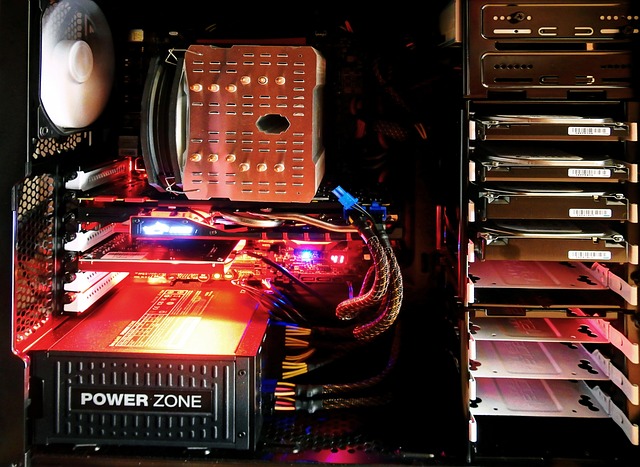
2. Access Drive Bay: Open your PC case. Locate a 2.5-inch drive bay. If your case only has 3.5-inch bays, you’ll need a 2.5-inch to 3.5-inch adapter bracket.
3. Remove Old Drive: Disconnect the SATA data and power cables from your old HDD. Unscrew the HDD and remove it.
4. Install New SSD: Mount the new 2.5-inch SATA SSD into the bay (using the adapter bracket if needed). Connect the SATA data cable to a SATA port on your motherboard and the SATA power cable from your power supply.
5. Install Operating System: You’ll need to install your operating system (Windows, macOS, Linux) onto the new SSD. You can do this using bootable USB drives or installation DVDs. Alternatively, if you’re cloning your old drive, use cloning software (often provided by SSD manufacturers) before physically swapping drives.
Laptop Installation
1. Power Down and Disconnect: Shut down your laptop, unplug the power adapter, and remove the battery if it’s user-removable.
2. Access Drive Compartment: Laptops vary widely. Some have a dedicated small panel on the bottom for the hard drive, while others require removing the entire bottom cover. Consult your laptop’s manual.
3. Remove Old Drive: Locate the 2.5-inch drive. It might be secured by screws or in a caddy. Carefully disconnect its SATA connector and slide it out.
4. Install New SSD: If your old drive was in a caddy, transfer it to the new SSD. Connect the new SSD to the laptop’s SATA connector and slide it into place. Secure it with screws or reattach the panel.
5. Reassemble and Install OS/Clone: Reattach the bottom cover or panel, replace the battery, and reconnect the power adapter. You’ll then need to install your OS or clone your old drive as described for desktops.
For laptops, it’s highly recommended to use cloning software to transfer your existing operating system, applications, and files directly to the new SSD. This avoids the hassle of reinstalling everything from scratch.
Common Mistakes to Avoid
Even with a straightforward upgrade, a few common pitfalls can trip users up. Being aware of them can save you time and frustration.
Not Cloning Data When Upgrading a Laptop
Many users opt to install a new OS on a laptop SSD, which means reinstalling all applications and transferring files manually. While this results in a clean system, it’s time-consuming. For laptops, using cloning software to create an exact replica of your old drive onto the new SSD is far more efficient. This ensures you have all your programs and settings ready to go immediately.
Forgetting to Change SATA Mode in BIOS/UEFI
Modern computers default to AHCI (Advanced Host Controller Interface) mode for SATA drives, which is optimal for SSDs. However, older systems or systems that previously used an HDD might be set to IDE (Integrated Drive Electronics) mode. If you install an SSD while the system is still in IDE mode, you won’t get the full performance benefit, and in some cases, the drive might not be recognized correctly. Always check your BIOS/UEFI settings and ensure the SATA controller mode is set to AHCI before installing the OS on a new SSD.
Buying an Insufficient Capacity Drive
It’s tempting to save money by getting a smaller drive, but storage needs tend to grow. A 250GB SSD might seem adequate for Windows and a few apps, but it can fill up surprisingly quickly with updates, temporary files, and downloads. Running out of space on an SSD can also lead to performance degradation. It’s generally advisable to opt for at least 500GB, or 1TB if your budget allows, to ensure comfortable usage for years to come.
Using a SATA II Port (if available)
Some older motherboards might have a mix of SATA II (3Gb/s) and SATA III (6Gb/s) ports. Always ensure you connect your new 2.5-inch SATA SSD to a SATA III port. Using a SATA II port will limit your drive’s speed to around 300 MB/s, significantly underutilizing its potential. Ports are usually labeled, or you can consult your motherboard manual.
Tips for Maximizing Your SATA SSD Performance
Once your 2.5-inch SATA SSD is installed and running, a few best practices can help maintain its performance and longevity.
Ensure TRIM is Enabled
TRIM is a crucial command that allows the operating system to tell the SSD which data blocks are no longer in use and can be erased. This helps the SSD manage its space more efficiently and maintain write speeds over time. Modern operating systems like Windows 10/11 and recent macOS and Linux versions enable TRIM automatically for SSDs. You can usually check its status through your OS’s disk management tools.
Avoid Defragmenting SATA SSDs
Defragmentation is a process for HDDs that rearranges scattered data fragments to improve access times. SSDs don’t need defragmentation; in fact, performing it on an SSD can actually reduce its lifespan by causing unnecessary writes. Your operating system should automatically recognize an SSD and disable defragmentation for it, opting instead for TRIM. Always double-check this setting.
Leave Some Free Space
SSDs perform best when they are not completely full. This also gives the drive’s internal garbage collection and wear-leveling algorithms room to work effectively.
Keep Firmware Updated
Manufacturers occasionally release firmware updates for their SSDs. These updates can fix bugs, improve performance, enhance compatibility, or even boost endurance. Check your SSD manufacturer’s website periodically for firmware updates. Most reputable brands provide simple tools to check and apply these updates.
Sources: Solid-state drive
Frequently Asked Questions
Are 2.5-inch SATA SSDs still relevant in 2026?
Yes, they are highly relevant, especially for upgrading older computers, budget builds, and as secondary storage. They offer a significant speed boost over HDDs at a competitive price point.
How much faster is a SATA SSD than a traditional HDD?
A SATA SSD can be 5 to 10 times faster than a typical HDD in terms of sequential read/write speeds, and even more significantly faster in random read/write operations, which impact everyday responsiveness.
Can I put a 2.5-inch SATA SSD in a desktop computer?
Absolutely. Most desktop cases have 2.5-inch drive bays, or you can use a 2.5-inch to 3.5-inch adapter bracket to fit it into a standard HDD bay.
Do I need to reinstall my operating system when installing a new SSD?
Not necessarily. You can clone your existing drive’s data to the new SSD using specialized software, which is often the preferred method for laptops to preserve settings and applications.
What is the typical lifespan of a 2.5-inch SATA SSD?
With modern TBW ratings and wear-leveling technology, a 2.5-inch SATA SSD used for typical consumer tasks can easily last 5-10 years or more, often outlasting the useful life of the computer it’s installed in.
Are SATA SSDs compatible with NVMe slots?
No, SATA SSDs use the SATA interface and connector. NVMe SSDs typically use the M.2 form factor and the PCIe interface. They are not interchangeable, though some motherboards offer both types of slots.
Conclusion: The Enduring Value of SATA SSDs
As of June 2026, the 2.5-inch SATA solid-state drive continues to be an excellent choice for many computer users. While NVMe drives capture the headlines with their blistering speeds, SATA SSDs provide a tangible, cost-effective performance upgrade that revitalizes older hardware and offers great value for new builds. Whether you’re looking to speed up a trusty, aging laptop or build a more economical desktop, a 2.5-inch SATA SSD is a smart, reliable, and accessible upgrade that delivers noticeable improvements in speed and responsiveness for everyday computing tasks.
Source: Britannica