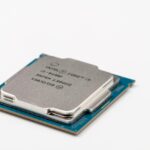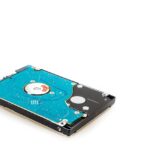
2.5-inch SATA SSDs offer an affordable performance upgrade over traditional hard disk drives, cutting computer boot times down from up to two minutes to just 10 to 20 seconds. As of June 2026, these drives remain a cost-effective solution for speeding up older laptops and desktops that lack NVMe support, as well as budget-conscious new builds.
This guide explains how 2.5-inch SATA SSDs work, real-world speed expectations, and simple installation steps. It also covers how to choose the right drive based on storage capacity, NAND memory types like TLC and QLC, and endurance ratings.
The Enduring Appeal of the 2.5-Inch SATA SSD in 2026
This guide covers everything about 2.5-Inch SATA SSDs in 2026: The Affordable Speed Upgrade. In a world increasingly dominated by lightning-fast NVMe drives, it might seem strange to talk about the humble 2.5-inch SATA solid-state drive (SSD). Yet, as of June 2026, these drives are far from obsolete. They represent a significant leap in performance for many users, offering a cost-effective and accessible way to breathe new life into older computers and even serving as a reliable option for new builds. If you’re looking to speed up your system without breaking the bank or navigating complex installations, understanding the role of the 2.5-inch SATA SSD is crucial.
- 2.5-inch SATA SSDs provide a substantial performance upgrade over traditional HDDs, especially for boot times and application loading.
- They are compatible with a vast range of computers, including older laptops and desktops that may not support NVMe drives.
- As of 2026, SATA SSDs offer excellent value, with prices dropping significantly for mid-range capacities.
- While not as fast as NVMe, their performance is more than adequate for general computing, office tasks, and many gaming scenarios.
- Installation is typically straightforward, often involving a simple swap with an existing hard drive.
Decoding the Specs: What Exactly is a 2.5-Inch SATA SSD?
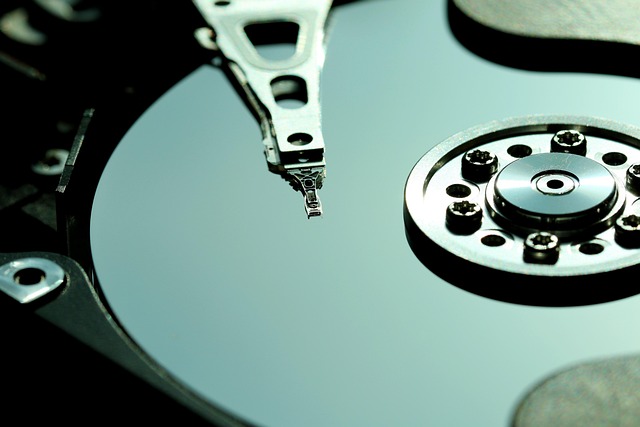
Let’s break down the name to understand what we’re dealing with. A ‘solid-state drive’ (SSD) is a type of storage device that uses flash memory chips to store data. Unlike traditional Hard Disk Drives (HDDs) which rely on spinning platters and a mechanical arm, SSDs have no moving parts. This fundamental difference is what makes them so much faster, quieter, and more durable.
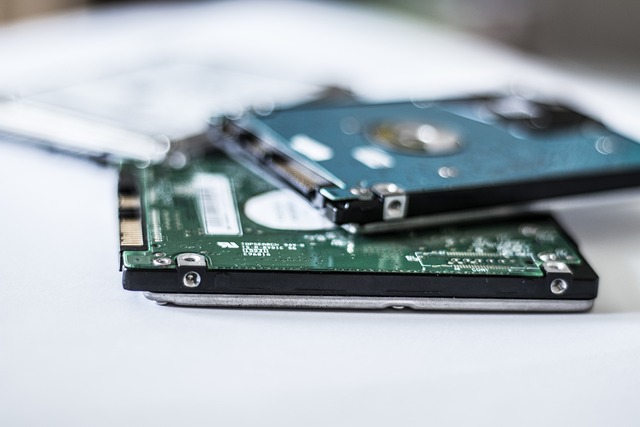
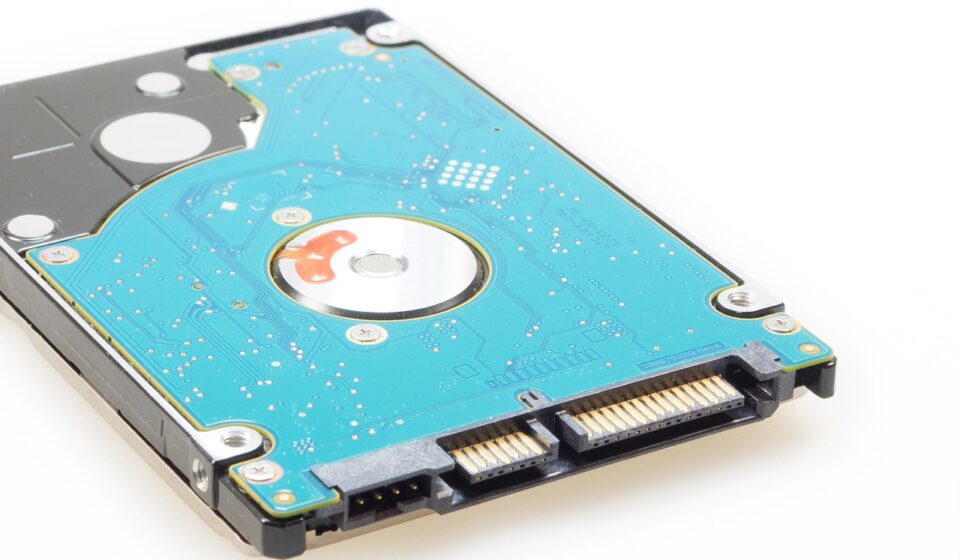
The ‘2.5-inch’ refers to the physical form factor, which is the standard size for laptop hard drives and many smaller desktop drives. This means a 2.5-inch SSD can often be fitted directly into the drive bay of a laptop or desktop computer without needing special adapters. It’s a familiar size that ensures broad compatibility.
Finally, ‘SATA’ (Serial Advanced Technology Attachment) is the interface, or connection type, that the drive uses to communicate with the computer’s motherboard. SATA has been the standard for connecting storage devices for many years. While newer, faster interfaces like NVMe (Non-Volatile Memory Express) exist, SATA remains a widely supported and understood standard.
The Case for SATA: Why 2.5-Inch SSDs Still Matter
You might wonder, with NVMe drives offering speeds many times faster, why would anyone still consider a SATA SSD? The answer lies in a blend of compatibility, cost, and sufficient performance for the majority of users. As of June 2026, the price difference between SATA SSDs and NVMe drives, especially for comparable capacities, can still be quite significant. For users with older systems, SATA is often the only viable upgrade path.
Many laptops and desktop computers manufactured before roughly 2018-2019 lack the M.2 slots or specific motherboard support required for NVMe drives. For these machines, a 2.5-inch SATA SSD is not just an option; it’s the only way to achieve solid-state performance. Even for newer systems, if the primary use case is general computing, office work, web browsing, or even many popular games, the tangible difference in real-world speed between a SATA SSD and an NVMe SSD can be minimal, barely noticeable to the average user.
The SATA III interface, the most common version you’ll find, has a theoretical maximum throughput of 600 megabytes per second (MB/s). While a high-end NVMe drive can push past 7,000 MB/s, the 600 MB/s offered by SATA is still a monumental improvement over the typical 100-150 MB/s sequential read/write speeds of a conventional HDD. This translates to much faster boot times, quicker application launches, and snappier overall system responsiveness. According to TechSpot’s 2026 market analysis, SATA SSDs continue to capture a substantial share of the consumer storage market due to their balance of performance and affordability.
Real-World Performance: What to Expect from a 2.5-Inch SATA SSD
It’s important to set realistic expectations. The theoretical maximum speed of a SATA III interface is 600 MB/s. In practice, most SATA SSDs will achieve sequential read and write speeds in the range of 500-560 MB/s. This is the speed at which the drive can read or write large, contiguous blocks of data.
However, for everyday computing, what often matters more are the random read/write speeds. These measure how quickly the drive can access small, scattered pieces of data, which is crucial for tasks like opening applications, loading operating system files, and multitasking. While SATA SSDs lag behind NVMe drives in this metric too, they are still vastly superior to HDDs. A typical SATA SSD might offer random read speeds of around 80,000-100,000 IOPS (Input/Output Operations Per Second), compared to just a few thousand IOPS for an HDD.
For context, consider booting your PC. A computer with an HDD might take one to two minutes to start up. With a 2.5-inch SATA SSD, this can often be reduced to 10-20 seconds. Loading a large application like Adobe Photoshop, which might take 30-60 seconds on an HDD, could load in 5-10 seconds on a SATA SSD. For most users, this dramatic improvement in responsiveness is more than enough to justify the upgrade, even if it’s not the absolute fastest technology available.
The bgr.com article from June 2026 highlighted that even with newer technologies emerging, Sandisk’s strategy in 2026 includes releasing new SATA SSDs, acknowledging their continued demand from budget-conscious consumers and those with older hardware. This indicates a sustained market presence and development for this form factor.
Ensuring Compatibility and Installation Made Simple
One of the biggest advantages of the 2.5-inch SATA SSD is its universal compatibility with most modern computers. If your computer has a 2.5-inch drive bay and a SATA port on its motherboard, it can likely accommodate a 2.5-inch SATA SSD. This is especially true for laptops, as the 2.5-inch form factor is the de facto standard for laptop storage for many years.
Installation is generally a straightforward process, often referred to as a ‘drop-in replacement’ for an existing HDD. For desktops, this typically involves opening the computer case, locating the drive bay, removing the old HDD, and installing the new SSD in its place, connecting both the SATA data cable and the SATA power cable. Many SSDs come with mounting screws or a simple bracket to fit into standard 3.5-inch desktop drive bays.
For laptops, the process usually involves accessing the drive compartment, which might be under a panel on the underside of the device. You’ll need to disconnect the old drive and connect the new SSD. While many users can perform this upgrade themselves, if you’re not comfortable opening your computer, a local computer repair shop can typically perform the swap for a small fee. The ease of installation makes it an attractive upgrade for those who aren’t technically inclined.
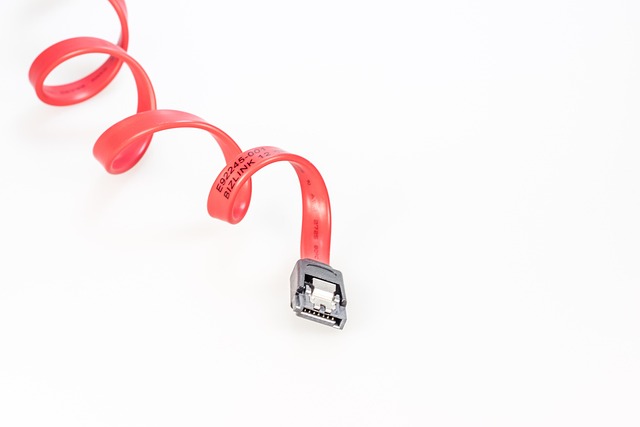
When purchasing, ensure you get the correct SATA data cable and, if your desktop case doesn’t have one, a SATA power adapter cable from the power supply unit. Most new SSDs don’t include these cables, assuming you’re replacing an existing drive and can reuse its cables.
Key Factors When Choosing a 2.5-Inch SATA SSD
With numerous brands and models available, selecting the right 2.5-inch SATA SSD can seem daunting. Here are the key factors to consider:
Capacity: How Much Storage Do You Need?
This is perhaps the most critical decision. SSD capacities range from 120GB to several terabytes. For a boot drive (where your operating system and applications are installed), 250GB to 500GB is often sufficient for most users. If you plan to store a large media library, games, or work with large files, you’ll need 1TB or more. As of June 2026, 1TB SATA SSDs offer a great balance of capacity and price for many. Remember that the usable capacity will be slightly less than the advertised amount due to formatting and system files.
Performance (Controller and NAND Type)
The SATA III interface caps while all SATA SSDs, the internal components—the controller and the type of NAND flash memory—can still affect performance and longevity. Controllers manage data flow, and better controllers offer more efficient operation. Common NAND types include TLC (Triple-Level Cell) and QLC (Quad-Level Cell). TLC is generally more durable and performs better than QLC, though QLC offers higher densities at a lower cost. For general use, TLC is often preferred, but QLC can be a good budget option if endurance isn’t a top priority.
Endurance (TBW Rating)
Terabytes Written (TBW) is a measure of how much data can be written to the drive over its lifetime before it’s expected to start failing. For typical home users writing a few gigabytes a day, even a lower TBW rating is usually more than sufficient for many years. A 250GB SSD might have a TBW rating of 70-150 TB, while a 1TB drive could be rated for 300-600 TBW. Unless you’re performing constant, heavy data writes (like video editing or large database operations), this is rarely a limiting factor for SATA SSDs.
Brand Reputation and Warranty
Stick with reputable brands known for quality and reliability. Companies like Samsung, Crucial, Western Digital (including SanDisk), SK hynix, and Kingston have long track records in the SSD market. Check the warranty period – most reputable SATA SSDs come with a 3-to-5-year warranty, providing peace of mind.
SATA SSD vs. NVMe SSD: When to Choose Which
The primary competitor to the 2.5-inch SATA SSD is the NVMe SSD. NVMe drives connect via the PCIe interface, allowing for significantly higher speeds. While a SATA SSD tops out around 550 MB/s, PCIe 4.0 NVMe drives can reach speeds of over 7,000 MB/s, and PCIe 5.0 drives are even faster.
However, NVMe drives require specific M.2 slots on your motherboard and are generally more expensive. For laptops and older desktops, NVMe compatibility is often non-existent. The choice comes down to your hardware and needs:
- Choose a 2.5-inch SATA SSD if: Your computer only has SATA ports, you’re on a tight budget, you need a simple upgrade for an older machine, or your primary use is general computing and office tasks where extreme speed isn’t critical.
- Choose an NVMe SSD if: Your computer has an M.2 NVMe slot, you regularly work with very large files (video editing, large datasets), you play demanding games that heavily use drive loading times, or you simply want the absolute fastest storage performance available and are willing to pay a premium for it.
As of Computex 2026 announcements, manufacturers like QNAP and BIWIN continue to showcase high-performance enterprise SSDs, but consumer-grade NVMe prices are still settling. This makes the 2.5-inch SATA SSD a more accessible option for many as reported by StorageNewsletter and Embedded Computing Design.
Common Mistakes When Upgrading to a SATA SSD
While upgrading to a 2.5-inch SATA SSD is generally straightforward, a few common pitfalls can trip up even experienced users.
- Forgetting to Clone Your Drive: Simply installing a new SSD and expecting your operating system to work is incorrect. You’ll need to either perform a fresh installation of your OS or, more commonly, clone your existing HDD to the new SSD using specialized software. Many SSD manufacturers provide free cloning tools (e.g., Samsung Data Migration, Acronis True Image for Crucial).
- Not Enabling AHCI Mode: For optimal SSD performance, the SATA controller on your motherboard should be set to AHCI (Advanced Host Controller Interface) mode in the BIOS/UEFI settings. If it’s set to IDE mode (common on older systems), your SSD’s performance will be severely limited. Ensure this is set before installing the OS or cloning your drive.
- Using Old SATA Cables: While a SATA SSD will physically connect to an older SATA II port, you’ll be limited to half the speed (300 MB/s). Always use a SATA III (6 Gbps) cable and ensure it’s connected to a SATA III port on your motherboard for maximum performance.
- Not Formatting the New Drive: After installing a new SSD and cloning your system, sometimes the drive might not appear in ‘My Computer’ or ‘This PC’. This usually means it hasn’t been assigned a drive letter. You’ll need to go into Disk Management (Windows) to initialize and format the drive, then assign a letter.
Maximizing Your SATA SSD’s Lifespan and Performance
To ensure your 2.5-inch SATA SSD serves you reliably for years to come, consider these tips:
- Keep Firmware Updated: Manufacturers periodically release firmware updates that can improve performance, fix bugs, and enhance stability. Check the manufacturer’s website or use their dedicated software utility to keep your SSD’s firmware current.
- Avoid Filling the Drive Completely: SSDs, especially those with TLC or QLC NAND, perform best when they have some free space. Aim to keep at least 10-15% of the drive capacity free. This helps the drive’s internal garbage collection and wear-leveling algorithms operate more efficiently.
- Enable TRIM: TRIM is an operating system command that tells the SSD which data blocks are no longer in use and can be erased internally. Most modern operating systems (Windows 8 and later, macOS, Linux) enable TRIM automatically for SSDs. Ensure it’s active for your drive.
- Don’t Defragment an SSD: Defragmentation is a process for HDDs that reorganizes scattered file fragments. SSDs don’t need defragmentation, and running it can unnecessarily increase wear on the drive’s flash memory cells. Your OS should recognize the SSD and disable automatic defragmentation for it.
- Use a Good Quality Drive: As mentioned, investing in a reputable brand with a solid warranty is crucial. While cheaper drives exist, they may compromise on components, leading to shorter lifespans or inconsistent performance.
The Micron 2300 1TB SSD, for example, is designed with enterprise-grade features, but consumer models also benefit from these advancements in NAND management and controller technology, as noted in its benchmarks by Notebookcheck.
Frequently Asked Questions
What is the main benefit of a 2.5-inch SATA SSD?
The primary benefit is a dramatic increase in speed compared to traditional hard drives, leading to faster boot times, quicker application loading, and a more responsive overall system.
Can I use a 2.5-inch SATA SSD in a desktop computer?
Yes, absolutely. Most desktop computers have bays designed for 2.5-inch drives, or they can be mounted using a simple 3.5-inch to 2.5-inch adapter bracket.
Are 2.5-inch SATA SSDs still good for gaming in 2026?
For most games, yes. While top-tier NVMe drives offer faster loading, the difference in gameplay is often minimal. SATA SSDs provide a significantly better gaming experience than HDDs and are still a viable option for budget-conscious gamers.
Do I need to format a new 2.5-inch SATA SSD before installing an operating system?
If you are performing a clean installation of an operating system, the installer will usually guide you through partitioning and formatting. If you are cloning an existing drive, the cloning software typically handles this process.
How long does a 2.5-inch SATA SSD typically last?
With normal usage, a good quality 2.5-inch SATA SSD is expected to last for many years, often exceeding the typical lifespan of the computer it’s installed in, thanks to wear-leveling technologies and high TBW ratings.
What is the maximum speed of a 2.5-inch SATA SSD?
The maximum theoretical speed for a SATA III interface is 600 megabytes per second (MB/s). Actual speeds typically range from 500 MB/s to 560 MB/s for sequential reads and writes.
Conclusion: The Smart Choice for an Accessible Speed Boost
While the cutting edge of storage technology continues to push boundaries with NVMe drives, the 2.5-inch SATA solid-state drive remains a profoundly relevant and valuable component in 2026. For users with older hardware, those on a budget, or anyone seeking a straightforward performance upgrade, a SATA SSD offers a tangible, often transformative, improvement. Its broad compatibility, ease of installation, and continually decreasing prices make it an excellent choice for revitalizing existing systems or building cost-effective new ones. Don’t underestimate the power of this enduring storage solution to make your computer feel faster and more responsive.
Source: Britannica
Related Articles
- Chapter Approved Is Live: Your 2026 Strategy Guide
- ConnectWise Control Client Exe: Beyond Basic Installation in 2026
- Dipawaymode Exe 2: What’s New and How to Use It Safely in 2026