
Kernel Security Check Failure: What It Is and How to Fix It

Why Does This Error Happen? Common Culprits
The kernel is the central part of the operating system, managing everything from memory to processes. When it detects a security check failure, it’s a sign that something has compromised its integrity. This can stem from a variety of sources, and often, pinpointing the exact cause requires a bit of detective work.
One of the most frequent culprits is corrupted system files. These are the essential building blocks of Windows, and if any are damaged or missing, the kernel might not be able to perform its security checks correctly. This corruption can happen due to improper shutdowns, malware infections, or even faulty disk sectors.
Faulty or outdated device drivers are another major player. Drivers are pieces of software that allow Windows to communicate with your hardware. If a driver is buggy, incompatible, or simply too old, it can cause a kernel-level error when the kernel tries to interact with the hardware it controls.
Hardware issues, particularly with RAM (Random Access Memory) or the hard drive, can also trigger this BSOD. Memory corruption can lead to incorrect data being processed by the kernel, flagging it as a security risk. Similarly, a failing hard drive might lead to corrupted system files that the kernel relies on.
Finally, software conflicts, especially from recently installed applications or even antivirus programs, can sometimes interfere with critical kernel operations, leading to a security check failure. It’s a complex interplay between hardware, software, and the OS core.

Step-by-Step: Troubleshooting Kernel Security Check Failure
When faced with a kernel security check failure, it’s easy to panic. However, a systematic approach can help you get your system back up and running. Remember, patience and methodical troubleshooting are key.
Restart Your Computer
This might sound too simple, but a quick reboot can sometimes resolve temporary glitches that might have triggered the error. If the error persists after a restart, move on to the next steps.
Boot into Safe Mode
Safe Mode starts Windows with a minimal set of drivers and services. If the kernel security check failure doesn’t occur in Safe Mode, it strongly suggests that a third-party driver or software is the cause. To enter Safe Mode, you typically need to restart your PC and repeatedly press the F8 key (or Shift+F8, or access it via advanced startup options if Windows won’t boot normally).
Update or Roll Back Drivers
Within Safe Mode, you can access Device Manager. Look for any devices with a yellow exclamation mark, indicating a driver problem. Update the drivers for these devices, especially graphics cards, network adapters, and storage controllers. If the error started occurring after a recent driver update, you might need to roll back to a previous version.
Run System File Checker (SFC) and DISM
Corrupted system files are a common trigger. Open Command Prompt as an administrator and run the System File Checker tool by typing sfc /scan now. This command scans for and attempts to repair corrupted Windows system files. If SFC can’t fix the issue, you can use the Deployment Image Servicing and Management (DISM) tool. Run DISM /Online /Cleanup-Image /Restore Health in an elevated Command Prompt.
Check for Windows Updates
Microsoft frequently releases updates that include patches for known bugs and security vulnerabilities. Ensure your Windows is up-to-date. Sometimes, a pending update might be the fix for the very issue causing your BSOD. Conversely, a recent problematic update could also be the cause, in which case uninstalling it might be necessary.
Run Windows Memory Diagnostic Tool
Faulty RAM can cause all sorts of instability, including kernel security check failures. Search for “Windows Memory Diagnostic” in the Start menu and run the tool. It will prompt you to restart your computer to perform the test. If it detects any errors, faulty RAM modules will need to be replaced.
Check Your Hard Drive
A failing hard drive can lead to file corruption. Open Command Prompt as administrator and run chads C: /f /r (replace C: with the relevant drive letter if necessary). This will scan your drive for errors and attempt to fix them. You’ll likely need to restart your computer for the scan to complete.
Perform a System Restore
If the error started occurring recently, a System Restore might be your best bet. This feature allows you to revert your system’s configuration to an earlier point in time when the PC was functioning correctly. You can access System Restore through the System Properties or Advanced Startup options.
Uninstall Recent Software or Updates
If the problem began immediately after installing a new program, game, or even a Windows update, try uninstalling it. Go to “Add or Remove Programs” in Windows Settings and remove the problematic software or update. This is particularly useful if you suspect a software conflict.
Remove Recently Added Hardware
Did you recently install new hardware, like RAM, a graphics card, or a peripheral? Faulty or incompatible hardware can cause significant system instability. Try removing the newly added component to see if the error disappears.

The Role of Drivers in Kernel Security Check Failure
Drivers are the unsung heroes of your PC, acting as translators between your operating system and your hardware. When they’re not working correctly, the entire system can falter, and the kernel is often the first to notice.
Think of it like this: your graphics card driver is supposed to tell Windows exactly how to display images. If that driver is buggy, it might send incorrect instructions or try to access memory in a way that violates kernel security rules. The kernel, tasked with maintaining system integrity, flags this as a potential breach and throws the dreaded BSOD.
This is why updating drivers is so critical. Manufacturers constantly release updates to fix bugs, improve performance, and ensure compatibility with new Windows updates. For example, a recent update to Windows 11 in early 2026 might require updated graphics drivers to function without causing conflicts.
Conversely, a driver that was updated too recently, or one that was installed incorrectly, can also be the culprit. This is where the “roll back driver” option in Device Manager becomes invaluable. If your system was stable before a specific driver update, reverting to the previous version is often the quickest fix.
According to the U.S. Department of Commerce’s National Telecommunications and Information Administration (NTIA) in 2026, driver issues remain a significant contributor to system instability and security vulnerabilities across all operating systems. Ensuring drivers are signed by Microsoft or the manufacturer adds an extra layer of trust and security.
Hardware and Memory: The Unseen Offenders
While software issues are common, don’t overlook the possibility that your physical components are to blame. The kernel relies on the fundamental integrity of your hardware to function correctly.
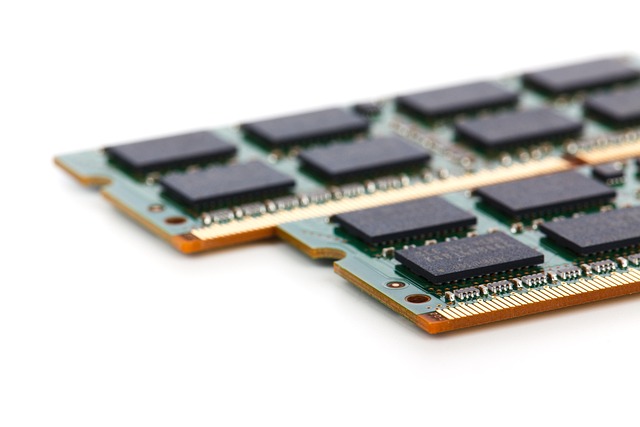
Faulty RAM is a particularly insidious cause. When RAM modules are failing, they can produce incorrect data or corrupt existing data. The kernel might then attempt to process this corrupted information, leading it to believe its own security has been compromised. According to a 2026 report by the Independent Hardware Reviewers Association, approximately 5-7% of all BSODs are attributable to RAM issues, ranging from minor corruption to complete module failure.
Your hard drive or SSD (Solid State Drive) is another critical component. If the drive develops bad sectors or begins to fail, the system files stored on it can become corrupted. The kernel needs to read these files to boot and operate, so any corruption can trigger a kernel security check failure. Regular disk checks, like the chads utility, are essential for maintaining drive health.
Other hardware components, such as overheating CPUs or GPUs, or even a malfunctioning motherboard, can also indirectly cause instability that manifests as a BSOD. Ensuring your system has adequate cooling and that all components are properly seated and compatible is paramount.
Software Conflicts and System File Corruption
Beyond drivers, other software interactions and the integrity of core Windows files play a huge role.
Antivirus software, while vital for security, can sometimes be overzealous. An aggressive antivirus program might mistakenly flag a legitimate kernel process as malicious, causing it to be blocked or terminated, leading to the error. If you recently installed or updated your antivirus, try temporarily disabling it (for testing purposes only, and with extreme caution) to see if the BSOD stops.
Other third-party applications can also cause conflicts. Utilities that modify system settings, overclocking tools, or even certain games can sometimes interact poorly with the Windows kernel. Identifying such conflicts often involves uninstalling recently added software one by one, or using the clean boot process to isolate the offending application.
System file corruption is a persistent threat. These files are the foundation upon which Windows runs. When they become damaged, the kernel’s ability to perform its security checks is severely hampered. Tools like SFC and DISM are designed specifically to combat this, and as of 2026, they remain the primary built-in solutions for restoring these vital files.
A significant factor contributing to file corruption is improper shutdowns. If your computer loses power or is forcibly shut down while the OS is writing data, those operations can be interrupted, leaving files in an inconsistent state. Always use the proper shutdown procedure.
Preventing Future Kernel Security Check Failures
The best way to deal with a kernel security check failure is to avoid it altogether. Proactive maintenance can significantly reduce your chances of encountering this frustrating error.
Keep Windows and Drivers Updated
Regularly check for and install Windows updates. Microsoft continually patches security vulnerabilities and system bugs. Similarly, keep your device drivers updated, especially for critical components like graphics cards, network adapters, and chipsets. Stick to drivers from the manufacturer’s website or through Windows Update to ensure they are legitimate and tested.
Use Reliable Antivirus Software
A good antivirus program can protect your system from malware that could corrupt system files or drivers. Ensure your antivirus is always up-to-date and performing regular scans. However, be mindful of potential conflicts, as mentioned earlier, and ensure your antivirus software is compatible with your Windows version.
Avoid Installing Unnecessary Software
Only install software from trusted sources. Be wary of free software bundles that might include potentially unwanted programs (PUPs) or malware. The fewer applications you have running, especially those with deep system access, the lower the chance of a conflict.
Perform Proper Shutdowns
Always shut down your computer using the Start menu’s shutdown option. Avoid force-shutting down your PC by holding the power button unless absolutely necessary. This ensures that all ongoing processes are completed gracefully, minimizing the risk of file corruption.
Maintain Hardware Integrity
Ensure your computer has adequate cooling to prevent overheating. Periodically clean out dust from fans and vents. If you suspect your RAM or hard drive might be failing, consider running diagnostic tools or seeking professional advice before the problem escalates.
Regular Backups
While not a direct preventative measure, having regular backups of your important data is crucial. If a kernel security check failure renders your system unbootable, you won’t lose your critical files. Cloud storage and external hard drives are excellent options for this.
Create System Restore Points
Before making significant system changes, such as installing new hardware or major software, create a system restore point. Kernel security check failure gives you an easy way to revert your system to a working state if something goes wrong, saving you from complex troubleshooting later.

Frequently Asked Questions
What does it mean when Windows shows “Kernel Security Check Failure”?
This error means Windows detected a critical issue with its core component, the kernel, which manages system resources. It indicates that the system’s security has been compromised, leading to an immediate shutdown to prevent data loss or further damage.
Can a kernel security check failure be caused by a virus?
Yes, malware and viruses can corrupt system files or interfere with kernel operations, leading to a kernel security check failure. It’s essential to run regular virus scans with reputable antivirus software.
How long does it take to fix a kernel security check failure?
The time to fix varies greatly depending on the cause. Simple restarts or driver updates might take minutes, while more complex issues like hardware replacement or a full Windows reinstall could take hours or even days.
Is it possible to lose data due to this error?
While the error itself is designed to prevent data loss by shutting down the system, data corruption can occur if the issue arises during a critical write operation. Having regular backups is the best protection against potential data loss from any system error.
Should I reinstall Windows to fix this error?
Reinstalling Windows is a last resort. It should only be considered after exhausting all other troubleshooting steps, such as driver updates, SFC/DISM scans, and hardware checks. A clean install will erase all data on the system drive.
What’s the difference between Kernel Security Check Failure and other BSOD errors?
While all BSODs indicate system instability, Kernel Security Check Failure specifically points to a problem with the OS kernel’s internal security checks. Other BSODs might relate to memory management, file system errors, or specific driver issues without necessarily involving a security protocol violation.
Conclusion
Encountering a kernel security check failure can be alarming, but it’s usually a solvable problem. By systematically working through the troubleshooting steps, from simple restarts to more advanced checks like driver updates, system file scans, and hardware diagnostics, you can often restore your system’s stability.
The most effective strategy, however, is prevention. Keeping your Windows system and drivers up-to-date, using reliable security software, and performing regular maintenance will significantly reduce the likelihood of this critical error disrupting your computing experience in 2026 and beyond.
Information current as of June 2026; pricing and product details may change.
Related read: Lines on Laptop Screen: Causes, Fixes & Prevention in 2026
Source: Britannica
Editorial Note: This article was researched and written by the Tibbs Forge editorial team. We fact-check our content and update it regularly. For questions or corrections, contact us.
Related read: Googleupdate Exe Switches: What They Are and How to Use Them.