Gearview Exe (GEARView.exe) is a legitimate executable file belonging to Hyland’s PACSGEAR GEAR View medical imaging suite, designed for opening, inspecting, and quality-checking DICOM files such as CT scans and MRIs. It operates as a non-system background process on clinical workstations to handle radiology studies.
While normally low on system resources, GEARView.exe can experience high CPU usage, memory surges, or runtime errors when decompressing large image datasets, handling corrupted local spools, or encountering missing runtime dependencies.
This guide explains how GEARView.exe processes DICOM metadata, how to verify its standard installation directory to rule out malware, and how to resolve performance bottlenecks and errors step by step.
Gearview Exe: What It Is, How It Works, and How to Fix Errors
Gearview Exe (GEARView.exe) is an executable file belonging to the PACSGEAR GEAR View medical imaging software suite developed by Hyland for opening, inspecting, and quality-checking DICOM files. It is a legitimate, non-system background component required for viewing radiology studies such as CT scans, MRIs, and digital X-rays on clinical workstations.
When you encounter an unfamiliar process on a Windows workstation, verifying its origin is essential. If you monitor your task manager, you might see GEARView.exe running in the background or during active patient image reviews. As part of modern healthcare IT systems, understanding how this process works helps you differentiate standard clinical software activity from system performance bottlenecks or software corruption.
What is Gearview Exe and why is it on your computer?
GEARView.exe is the main viewer component of the GEAR View and GEAR View QC software products produced by PACSGEAR, a subsidiary of Hyland Software. This executable allows healthcare personnel, radiology technicians, and medical staff to view, manage, and edit medical imagery before or after it is stored in a Picture Archiving and Communication System (PACS) or Electronic Health Record (EHR) database.
Understanding where the file resides helps confirm its authenticity. On a standard Windows system, GEARView.exe is located in one of these default directories:
C:Program FilesPACSGEARGEAR View QCGEARView.exeC:Program Files (x86)PACSGEARGEAR ViewGEARView.exe
If you find GEARView.exe located in C:WindowsSystem32 or inside a user AppDataTemp directory without any accompanying PACSGEAR program folder, it may be a renamed executable or malware file attempting to hide behind a legitimate name. According to Outbyte.com, executable issues can arise from overloaded systems or missing, deleted, or corrupted program files, particularly on workstations that lack regular maintenance.
If you do not work in a hospital, clinic, outpatient facility, or medical imaging center, Gearview Exe should not normally be present on your computer unless your computer was previously managed by a healthcare IT department or you installed a third-party medical CD/DVD viewer sent by a diagnostic center.

How Gearview Exe handles DICOM medical imaging
Digital Imaging and Communications in Medicine (DICOM) is the global standard format for storing and transmitting medical imagery. Unlike standard image formats like JPEG or PNG, a DICOM file contains both high-resolution image pixel matrices and rich metadata header tags containing patient identifiers, study dates, equipment parameters, radiation dosages, and slice thickness.
When you launch GEARView.exe or double-click a patient study, the program executes several critical functions behind the scenes:
- Header Tag Parsing: It extracts DICOM metadata tags such as Patient ID (0010,0020), Modality (0008,0060), and Study Instance UID (0020,000D) to verify record integrity before displaying graphics.
- Windowing and Leveling (W/L): It adjusts the Value of Interest (VOI) Look-Up Table (LUT), enabling radiologists and clinicians to alter contrast and brightness dynamically to isolate soft tissue, bone structure, or vascular density.
- Multi-Planar Reconstruction (MPR): Advanced iterations stack series of 2D axial slice images (such as CT or MRI series) and calculate coronal, sagittal, or oblique 3D views.
- Measurement and Annotation: It allows users to place Cobb angle markers, distance lines, area calipers, and text notes directly on the image layer without overwriting raw diagnostic pixel data.
- DICOM Network Protocol Handling: The executable communicates across local clinical networks using DICOM network services including C-STORE, C-FIND, C-MOVE, and C-ECHO to query or send studies to central archives.
In quality control workflows, GEARView.exe gives technicians the ability to split multi-patient disc imports, re-assign demographic tags to mismatched patient profiles, and delete blank calibration frames before sending studies into permanent storage. Complete technical deployment protocols are detailed in Hyland’s installation guides for their PACSGEAR products.
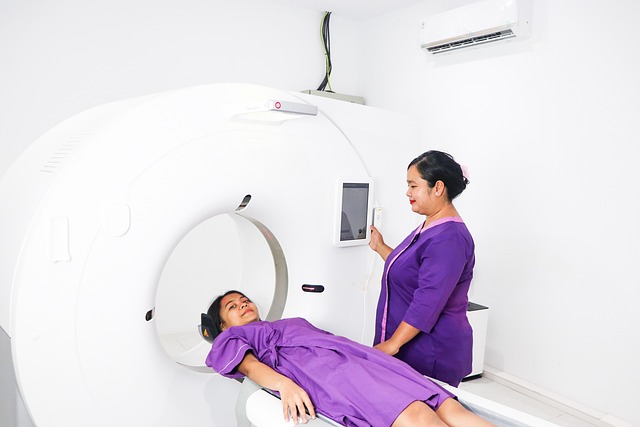
Why Gearview Exe uses high CPU, memory, or causes errors
Under normal operational conditions, GEARView.exe uses low CPU resources when idle and modest system memory (150 MB to 400 MB). However, during active medical image processing, resource consumption can surge dramatically. Knowing why this occurs helps separate normal processing load from application failure.
1. High CPU and memory spikes
Opening large volumetric datasets—such as thin-slice 1,000-frame chest CT scans or multi-frame cardiac angiograms—requires GEARView.exe to decompress pixel data and store uncompressed matrices directly in RAM. High CPU usage occurs during initial DICOM decompression (such as JPEG 2000 or JPEG Lossless codecs) and interactive 3D volume rendering. If RAM fills completely, the system will swap data to disk, causing the application to become sluggish or un-responsive.
2. Corrupted local cache files
GEAR View caches thumbnail indexes and temporary DICOM files in local spools (often inside C:ProgramDataPACSGEARCache or local user AppData). If a network disconnect interrupts a file transfer, incomplete DICOM files remain in the spool. Subsequent attempts by GEARView.exe to parse these truncated headers can trigger infinite processing loops and high CPU usage.
3. Missing runtime dependencies
GEARView.exe relies on specific versions of Microsoft .NET Framework and Microsoft Visual C++ Redistributable libraries. If these components are damaged during Windows Updates or removed by administrative cleanup scripts, GEARView.exe will fail to launch or immediately throw “Application Error 0xc0000005” or “Entry Point Not Found” popups.
4. Network socket timeouts
Because GEARView.exe communicates directly with PACS servers and DICOM routers via specific TCP ports (typically standard DICOM port 104 or custom ports like 11112), network drops, strict firewall rules, or DNS lookup failures force the program to hold thread locks while waiting for server replies. This results in the “Not Responding” status in Windows Task Manager.

Step-by-step troubleshooting for Gearview Exe issues
If GEARView.exe freezes, throws runtime error dialogs, or consumes excessive system resources, follow these steps in order to diagnose and resolve the issue.
Step 1: Terminate stuck processes in Task Manager
If the viewer freezes during image processing, forcibly closing the hung background process allows you to start fresh without rebooting the system.
- Press
Ctrl + Shift + Escto open the Task Manager. - Select the Details tab.
- Locate
GEARView.exein the process list. - Right-click
GEARView.exeand select End process tree.
Step 2: Clear local DICOM cache folders
Clearing corrupted spooled data forces the viewer to pull clean original image copies from the PACS server or media source.
- Close all GEAR View applications.
- Press
Win + R, type%ProgramData%PACSGEAR, and press Enter. - Locate the
CacheorTempSpooldirectory. - Delete the temporary cached image files inside (do not delete application configuration files ending in
.xmlor.config).
Step 3: Run the application with elevated administrator rights
When GEARView.exe cannot write to local temp directories or communicate across restricted network adapters, insufficient permissions are often the cause.
- Navigate to
C:Program FilesPACSGEARGEAR View QC. - Right-click
GEARView.exeand choose Properties. - Click the Compatibility tab.
- Check the box for Run this program as an administrator and click Apply.
Step 4: Verify network port bindings and firewall access
GEARView requires open local sockets to receive DICOM images from acquisition modalities and archive servers.
- Open Windows Defender Firewall from the Control Panel.
- Select Allow an app or feature through Windows Defender Firewall.
- Ensure that
GEARView.exehas checkmarks for both Domain and Private networks. - Verify that local network security appliances are not blocking outbound DICOM traffic on port 104 or port 11112.
Step 5: Run Windows System File Checker (SFC)
If system-level DLL files required by GEARView.exe have been corrupted, Windows can automatically repair them.
- Press
Win + S, typecmd, right-click Command Prompt, and select Run as administrator. - Type
sfc /scannowand press Enter. - Wait for verification to hit 100%. If corruption was repaired, reboot the computer and attempt launching GEARView.exe again.
Step 6: Perform a clean reinstall of the PACSGEAR suite
If configuration files or application binaries are permanently damaged, reinstalling the application restores full functionality.
- Open Settings > Apps > Installed Apps (or Programs and Features).
- Select PACSGEAR GEAR View or GEAR View QC and click Uninstall.
- Reboot the workstation to release remaining registry keys.
- Run the official installer provided by your clinical IT administrator or Hyland customer support portal, selecting default installation paths.
Comparing GEAR View with alternative DICOM viewing tools
Healthcare facilities and medical research offices utilize various DICOM viewing platforms based on operating system support, clinical specialization, PACS integration requirements, and licensing models. The table below compares GEAR View QC with other widely used DICOM solutions.
| Software Viewer | Primary Use Case | Operating Systems | DICOM Network Protocols | Target Environment |
|---|---|---|---|---|
| GEAR View / GEAR View QC | Quality control, image import/capture, tag editing | Windows 10, Windows 11, Windows Server | C-STORE, C-FIND, C-MOVE, C-ECHO | Enterprise hospital networks, radiology departments |
| MicroDicom | Lightweight standalone DICOM viewer | Windows | Basic local DICOM query/retrieve | Small clinical practices, personal medical record review |
| Horos | Open-source 64-bit medical image visualization | macOS | Full DICOM networking & PACS integration | Mac-based medical researchers, independent clinicians |
| Orthanc Web Viewer | Web-based DICOM server & browser extension | Cross-platform (Linux, Windows, macOS via Web) | RESTful API, DICOM Web (STOW-RS, WADO-RS) | Custom medical cloud infrastructure, telemedicine platforms |
Choosing the right viewer depends on your facility’s operational structure. Standalone utilities or web viewers serve basic inspection needs, while GEAR View QC provides direct DICOM header manipulation, media burning, and tight integration with enterprise Hyland PACS environments. For additional guidance on standalone viewing methods, see WikiHow’s guide on opening DICOM files.
Who Gearview Exe is not for
It is equally important to understand who does not need GEARView.exe running on their computer:
- Home or standard office computer users: If you use your PC for web browsing, gaming, general office work, or software development outside of healthcare, GEARView.exe serves no functional purpose.
- Patients receiving medical CDs for personal home viewing: Most patient portable media includes auto-run light viewers (such as portable DICOM readers). You do not need to install the full enterprise GEAR View QC software suite to view personal radiology records.
- Non-DICOM graphics processing: GEARView.exe is specifically engineered for medical image standards. It is not a general-purpose image editor or photo viewer for JPG, PNG, or vector formats.
If you discover GEARView.exe on a personal home computer where no medical software was purposefully installed, run a comprehensive system scan using your antivirus software to verify that the file is not a malicious application masquerading under a false executable name.
Best practices for managing Gearview Exe in clinical IT systems
System administrators overseeing hospital networks and clinical workstations should implement proactive maintenance procedures to keep GEARView.exe operating cleanly across all clinical nodes:
- Directory Exclusions in Antivirus: Configure real-time endpoint protection software (such as Windows Defender Endpoint or SentinelOne) to exclude active local DICOM spool folders (e.g.,
C:ProgramDataPACSGEARTemp) from continuous scanning. Live scanning of multi-gigabyte temporary image spools causes severe latency during patient study transfers. - Automated Cache Purging: Set up periodic administrative maintenance scripts to purge local image cache folders older than 7 days, preventing hard drives on diagnostic workstations from filling up.
- Service Account Configuration: Ensure that background DICOM communication services associated with GEAR View run under dedicated local service accounts with write permissions restricted strictly to designated image storage folders.
- Version Consistency: Maintain matching versions of GEARView software across all acquisition stations and PACS gateways to prevent metadata tag mismatch errors during cross-node study transfers.
Frequently Asked Questions About Gearview Exe
Is Gearview Exe safe to run?
When obtained from legitimate sources, such as official software vendors like Hyland or through trusted installation packages, Gearview Exe is generally safe to run. However, always ensure it’s free of malware by using up-to-date antivirus software.
Can I uninstall Gearview Exe?
Yes, you can typically uninstall Gearview Exe by uninstalling the main application it belongs to. Navigate to your system’s ‘Apps & features’ or ‘Add or Remove Programs’ in Windows and remove the associated software.
Why is Gearview Exe using so much memory?
High memory usage can occur if Gearview Exe is processing very large DICOM files, if there’s a bug causing a memory leak, or if it’s running alongside other memory-intensive applications.
Where is the Gearview Exe file located on my computer?
The exact location can vary, but it’s often found within the installation directory of the medical imaging software it’s associated with, such as in a ‘Program Files’ subfolder. You can find its location by right-clicking the application shortcut and selecting ‘Open file location’.
Does Gearview Exe come with Windows?
No, Gearview Exe is not a standard component of the Windows operating system. It’s installed as part of third-party medical imaging or diagnostic software.
How do I update Gearview Exe?
Gearview Exe is usually updated as part of the larger application it’s installed with. Check the associated software for updates or visit the vendor’s website for the latest version.