Screen tearing is a visual glitch where a display shows portions of multiple frames simultaneously, creating a horizontal split across the image when your graphics card renders frames at a different rate than your monitor refreshes. This disruption is especially noticeable during fast camera movements in video games, high-speed action in video playback, or rapid web page scrolling.
Fixing screen tearing requires aligning your GPU’s frame delivery with your monitor hardware. You can resolve the issue by enabling VSync, turning on Adaptive Sync technologies like G-Sync or FreeSync, setting frame rate limits, configuring Windows graphics settings, or updating GPU drivers.
The rest of this guide explains the root hardware and software causes of screen tearing and provides step-by-step methods to eliminate it on your PC.
Screen Tearing: What It Is and How to Fix It
Screen tearing is a visual glitch where your display shows portions of multiple frames simultaneously, creating a horizontal split or jagged line across the image. It happens when your graphics card renders frames at a different rate than your monitor refreshes, which you can fix by adjusting sync settings, capping frame rates, or updating drivers.
When screen tearing occurs, objects on screen appear misaligned along an invisible horizontal line. This visual disruption is especially noticeable during fast camera movements in video games, high-speed action scenes in video playback, or rapid scrolling on web pages. Implementing a effective screen tearing fix requires aligning your GPU’s frame delivery with your monitor’s display hardware.
Why does screen tearing happen?
Screen tearing is fundamentally a timing mismatch between two pieces of hardware: your graphics card (GPU) and your display monitor. Your GPU renders complete rendered images into a buffer memory before pushing them to the display panel. Meanwhile, your monitor updates its screen continuously from top to bottom at a set frequency known as its refresh rate (measured in Hertz, or Hz).
According to Wikipedia, screen tearing is a visual artifact where a display device shows information from multiple frames in a single screen draw, occurring when the video feed isn’t synchronized with the display’s refresh rate. If your GPU completes a new frame while the monitor is in the middle of scanning down the display panel, the display instantly switches to drawing the newly received frame. The top half of your screen displays the tail end of the old frame, while the bottom half displays the beginning of the new frame, resulting in a visible horizontal tear.
The tear mark is the precise boundary line where the monitor shifted frame buffers during its draw cycle. Multiple tears can appear on screen at once if your graphics processor is outputting frame rates two, three, or four times higher than the monitor’s native refresh rate. Conversely, if frame rates fluctuate wildly, the tear lines shift positions continuously across the screen, creating a jarring, disorienting experience.
What causes screen tearing on your PC?
Common causes of screen tearing stem from software misconfigurations, driver bugs, or fundamental mismatches between rendering output and physical hardware capabilities.
Uncapped GPU frame rates
When a game or application runs without a frame rate limiter, the GPU outputs as many frames per second (FPS) as its processing cores can render. If your GPU pushes 120 FPS into a standard 60Hz monitor, the screen attempts to scan two full frame updates during a single 16.6-millisecond refresh cycle. This forces frame switches midway down the display, generating visible tearing lines.
Frame rate dropping below monitor refresh rate
Tearing does not occur only when frame rates are too high. If your GPU operates at an average frame rate lower than your monitor’s fixed refresh rate (for example, generating 45 FPS on a static 60Hz panel), the display holds the previous frame for a cycle, then receives a new frame mid-draw during the next cycle. This phase mismatch triggers tearing alongside visible stuttering.
Disabled synchronization settings
Modern graphics APIs rely on synchronization protocols to hold rendered frames until the monitor enters its vertical blanking interval (V-BLANK)—the brief pause between finishing one full bottom-to-top screen scan and starting the next. If Vertical Sync (VSync) or Variable Refresh Rate (VRR) features are turned off in game menus or graphics control panels, frame buffers flip immediately without waiting for V-BLANK.
Windowed display modes and desktop composition
Running games in Windowed or Borderless Windowed mode hands display composition over to the operating system’s desktop window manager. If desktop composition optimizations fail or conflict with full-screen hardware overrides, the operating system can present unsynchronized buffer swaps that cause tearing inside the game window.
Outdated or corrupted graphics drivers
Graphics driver software communicates render commands directly between the operating system and GPU hardware. Outdated, corrupt, or improperly installed GPU drivers can fail to communicate display timing protocols correctly, causing synchronization features like VSync, G-Sync, or FreeSync to silently disengage.
Multi-monitor setups with mixed refresh rates
Connecting multiple displays with differing native refresh rates—such as a 144Hz primary gaming monitor alongside a 60Hz secondary display—forces the graphics driver to manage independent display clocks. In certain operating system configurations, moving animated content onto the secondary display can break hardware sync locks on the primary screen, reintroducing screen tearing.
How to fix screen tearing step by step
Resolving screen tearing requires adjusting your display software, graphics driver settings, or hardware configuration. Follow these methods in order to eliminate tears while preserving system responsiveness.
Method 1: Enable VSync in games or graphics drivers
Vertical Sync forces the GPU to match frame delivery directly to your monitor’s refresh cycles. The GPU holds completed frames in a secondary buffer until the monitor finishes its active scan and enters the V-BLANK period.

Enabling VSync in individual games:
- Launch your game and navigate to the Video or Graphics settings menu.
- Locate the setting labeled VSync, Vertical Sync, or Wait for Vertical Refresh.
- Toggle the option to On or Enabled and save changes.
Enabling VSync globally via NVIDIA Control Panel:
- Right-click your desktop and select NVIDIA Control Panel.
- Under the 3D Settings hierarchy, click Manage 3D settings.
- Select the Global Settings tab (or Program Settings to target a specific game).
- Scroll down to Vertical sync, click the drop-down menu, and select On or Fast.
- Click Apply at the bottom right.
Enabling VSync globally via AMD Software:
- Right-click your desktop and launch AMD Software: Adrenalin Edition.
- Click the Gaming tab, then select Graphics.
- Locate Wait for Vertical Refresh and set it to Always on or Enhanced Sync.
Method 2: Turn on Adaptive Sync (G-Sync or FreeSync)
Adaptive Sync technologies match your monitor’s physical refresh rate directly to the GPU’s real-time frame rate output. Instead of forcing the GPU to wait for a fixed monitor clock, the monitor adjusts its screen refresh interval dynamically to accept completed frames instantly without tearing.
To use Adaptive Sync, you must connect your monitor using a DisplayPort cable (or HDMI 2.1 for supported TVs and displays) and enable AMD FreeSync or NVIDIA G-Sync across both hardware and software menus.
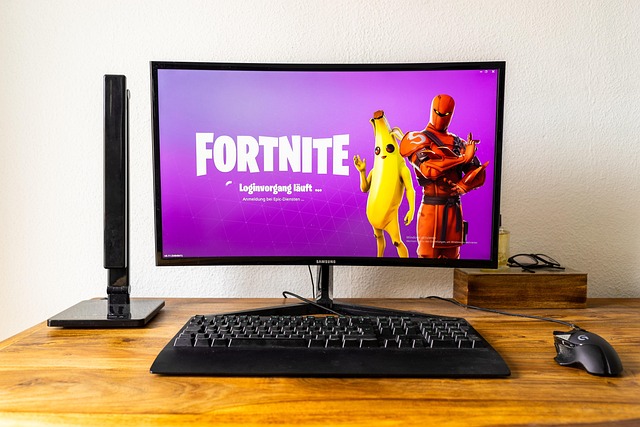
Steps to configure Adaptive Sync:
- Open your monitor’s hardware On-Screen Display (OSD) menu using the buttons on the display casing.
- Navigate to the display or gaming settings section, find G-Sync, FreeSync, or Adaptive-Sync, and set it to Enabled.
- Open your GPU control panel on your PC.
- For NVIDIA GPUs: Navigate to Set up G-SYNC in the NVIDIA Control Panel, check Enable G-SYNC, G-SYNC Compatible, select your preferred display mode (Fullscreen or Windowed), and check Enable settings for the selected display model.
- For AMD GPUs: Open AMD Software, click the settings gear icon, select the Display tab, and toggle AMD FreeSync to Enabled.
Method 3: Set a frame rate limit below your refresh rate
When running Adaptive Sync (G-Sync or FreeSync), frame rates that hit or exceed your monitor’s maximum refresh rate disable VRR functionality, causing the monitor to fall back on traditional VSync or uncapped frame behavior. Setting a frame rate cap 3 to 4 FPS below your monitor’s maximum refresh rate keeps Adaptive Sync active continuously and prevents input lag spikes.
- 144Hz Monitor: Cap frame rate at 140 FPS.
- 165Hz Monitor: Cap frame rate at 160 FPS.
- 240Hz Monitor: Cap frame rate at 236 FPS.
You can apply frame limits within in-game options menus, via third-party software like RivaTuner Statistics Server (RTSS), or through your GPU driver’s control panel under Max Frame Rate (NVIDIA) or Radeon Chill / Frame Rate Target Control (AMD).
Method 4: Configure display modes and Windows settings
Windows operating systems include built-in graphics management features that control how windowed applications synchronize with display hardware.
- Open the Windows Start menu and select Settings (or press Windows Key + I).
- Navigate to System > Display > Graphics.
- Click Default graphics settings or Change default graphics settings.
- Toggle Variable refresh rate to On to allow windowed applications to synchronize properly with VRR displays.
- Toggle Optimizations for windowed games to On to ensure low-latency presentation modes apply to non-exclusive fullscreen titles.
- Restart your system to apply changes.
Method 5: Perform a clean installation of GPU drivers
If software settings fail to stop screen tearing, residual configuration files from old driver installations may be interfering with frame buffer presentation.
- Download the standard driver package for your graphics hardware directly from NVIDIA, AMD, or Intel.
- Download Display Driver Uninstaller (DDU) to clean out driver remnants.
- Boot Windows into Safe Mode, run DDU, and select Clean and restart.
- Once back in standard Windows, run the driver installer package you downloaded and choose a Clean Installation if prompted.
- Re-configure your refresh rate and Adaptive Sync settings in Windows Display settings and your graphics control panel.
Method 6: Verify display cables and hardware ports
High refresh rate video transmission requires adequate signal bandwidth across display cables. If your cable lacks bandwidth, display drivers may drop down to lower refresh rates or drop handshake sync signals under heavy GPU load.
- Use a certified DisplayPort 1.4 or DisplayPort 2.1 cable for desktop PC monitors operating above 60Hz.
- If using HDMI, verify both your GPU, monitor, and cable support HDMI 2.0 (up to 144Hz at 1080p/1440p) or HDMI 2.1 (4K at high refresh rates).
- Avoid legacy display converters or passive HDMI-to-DisplayPort adapters, which disrupt Adaptive Sync handshake signals between the GPU and monitor.
Comparing anti-tearing methods: VSync, Adaptive Sync, and frame limiters
Different synchronization methods eliminate screen tearing through distinct technical mechanisms, carrying different trade-offs regarding latency, hardware requirements, and frame rate stability.
| Synchronization Solution | How It Works | Pros | Cons & Latency Impact | Best Used For |
|---|---|---|---|---|
| Standard VSync | Locks GPU frame output to fixed monitor refresh cycles during V-BLANK intervals. | Eliminates all visual tearing completely across all displays without special hardware. | Introduces noticeable input latency; causes harsh frame drops if GPU drops below refresh target. | Casual single-player gaming where visual smoothness matters more than input speed. |
| Fast Sync / Enhanced Sync | Allows GPU to render unlocked frames into multiple back buffers, dropping extra torn frames and displaying only the newest complete frame. | Eliminates tearing while offering lower input lag than traditional VSync at high FPS. | Can introduce minor micro-stutter if frame rates drop near or below native refresh rate. | Competitive fast-paced games where FPS significantly exceeds monitor refresh rate. |
| Adaptive Sync (G-Sync / FreeSync) | Dynamically syncs monitor hardware refresh rate to match GPU frame rendering speed in real time. | Completely eliminates tearing and stutter across varying frame rates with minimal latency. | Requires compatible VRR monitor hardware and DisplayPort / HDMI 2.1 cabling. | Modern gaming builds; recommended standard for all gaming setups. |
| Frame Rate Limiter | Restricts maximum FPS rendered by GPU via software engine or driver caps. | Reduces power draw, heat generation, and fan noise; prevents VRR range overshoot. | Does not actively align frame timing by itself; tearing can occur if phase sync drifts. | Used alongside Adaptive Sync or to smooth out GPU thermal limits. |
Screen tearing vs stuttering, ghosting, and input lag
Diagnosing display anomalies requires identifying whether your visual artifact is screen tearing or a separate hardware behavior.
- Screen Tearing: A static or shifting horizontal division line across the display showing parts of two or more rendered frames simultaneously. Motion remains fluid, but visual integrity is split.
- Stuttering: A choppy, hitching visual sensation caused by uneven frame pacing or sudden drops in frame rates. Unlike tearing, stuttering creates irregular skips in motion sequence rather than a split image.
- Ghosting and Motion Blur: Visual trailing, smearing, or dark halos behind fast-moving on-screen objects. Ghosting is caused by slow physical pixel transition times (gray-to-gray response times) on the monitor panel itself, not timing errors between GPU and display.
- Input Lag: The measurable delay between performing an input on your keyboard or mouse and seeing the corresponding action rendered on screen. Traditional VSync eliminates tearing but increases input lag significantly.
Common mistakes when trying to fix screen tearing
When troubleshooting screen tearing, avoid these frequent setup errors that preserve screen tears or introduce unnecessary input latency.
Ignoring monitor hardware settings
Enabling FreeSync or G-Sync in your GPU driver menu does nothing if the technology remains disabled inside your monitor’s internal hardware software. Always check your physical monitor’s OSD button menu to confirm Adaptive Sync or FreeSync features are turned on prior to configuring Windows settings.
Combining conflicting sync tools improperly
Running in-game VSync, third-party frame limiters, and GPU driver VSync simultaneously can cause driver conflicts that worsen input lag or create micro-stuttering. The optimal setup for Adaptive Sync display owners is turning G-Sync/FreeSync On, enabling VSync in the GPU Control Panel, turning VSync Off inside individual game options, and applying a global frame cap 3 FPS below maximum monitor refresh rate.
Failing to verify Windows refresh rate settings
Connecting a high refresh rate gaming monitor (e.g., 144Hz or 240Hz) using a standard cable or fresh Windows installation defaults the panel to 60Hz display output until adjusted manually. Check your display properties in Windows under System > Display > Advanced display to verify your display panel is set to its highest native Hertz rating.
Relying on uncapped FPS on low refresh rate panels
Allowing a game to run at 300 FPS on a standard 60Hz or 75Hz panel without variable refresh rate capabilities causes multiple horizontal tear lines to scan rapidly down your display panel. If your monitor lacks VRR hardware, using Fast Sync or Enhanced Sync offers a far cleaner image presentation than running totally uncapped frame rates.
Does screen tearing damage your hardware?
Screen tearing is strictly an aesthetic visual artifact occurring within digital image buffer memory. It does not cause physical stress, electrical overload, or long-term hardware damage to your display panel, graphics processing unit, or display cables.
The visual split exists only in the rendered pixels drawn onto screen memory buffers during active display cycles. While screen tearing can diminish visual immersion and throw off precise aiming in competitive gaming, your hardware operates safely regardless of whether tearing occurs on screen.
A mid-range gaming PC paired with a 144Hz FreeSync monitor delivers a smooth visual experience with tearing virtually eliminated when FreeSync is configured in AMD Software or NVIDIA Control Panel and in-game frame rates remain cleanly within the display’s variable refresh range.
Frequently asked questions
What is screen tearing?
Screen tearing is a visual distortion where your display panel shows content from multiple rendered frames in a single draw cycle, creating horizontal split lines across the screen. It occurs when your graphics processor sends frames at timing intervals that do not align with your monitor’s physical refresh rate.
How do I fix screen tearing in video games?
You can fix screen tearing by turning on Adaptive Sync (NVIDIA G-Sync or AMD FreeSync) on compatible displays, enabling VSync or Fast Sync in your graphics driver, or setting an in-game frame rate cap slightly below your monitor’s maximum refresh rate.
Does screen tearing harm my monitor or graphics card?
No, screen tearing is entirely a software buffer timing mismatch and does not cause physical or electrical damage to your display panel or graphics card hardware. It impacts visual viewing quality without harming equipment lifespan.
Why am I getting screen tearing even with G-Sync or FreeSync enabled?
Screen tearing occurs on Adaptive Sync setups if your frame rate exceeds your monitor’s maximum refresh rate or drops below its minimum VRR threshold. To fix this, set a global frame rate cap 3 to 4 FPS below your monitor’s peak refresh rate and keep driver-level VSync enabled.
Should I use VSync if I want low input lag?
No, traditional VSync introduces noticeable input latency because it forces the GPU to pause until the monitor completes a full V-BLANK refresh cycle. For low input lag without screen tearing, use Adaptive Sync combined with a frame rate limiter or use NVIDIA Fast Sync / AMD Enhanced Sync.